 BioManager
Your databases
Mouse colony
Mice, cages, litters and breeders, from birth to weaning: racks laid out like yours, and genotyping and weaning dates worked out for you.
What this does for your week
A colony runs on dates that are easy to get wrong and tedious to keep: when a litter is old enough to genotype, when it must be weaned, which cage is getting crowded, whose mice they are. BioManager's job is to work those out from one thing you already know — the day the pups were born — and then put them in front of whoever is on duty.
| Pups are born | You record the date once (Record a litter). Genotyping and weaning dates are worked out from it and appear on Home and the calendar — the same list in both, so nobody keeps a private one. |
|---|---|
| They are old enough to genotype | The litter becomes one record per pup in a few clicks (Genotype a litter), each with its own ear tag and result, instead of a row you retype. |
| Weaning day | Wean a litter moves the pups into new cages by sex, keeps them attached to the litter they came from, and frees the breeding cage. The cage cards for the new cages print with the genotypes already on them (Print cage cards). |
| In the animal room | Scan the QR code on a cage card with a phone to open that cage, add a weight or a note with gloves on, and have it in the record before you leave the room (At the bench). |
What you stop doing: keeping the wean dates in your head or a wall calendar, retyping a litter into a sheet, rewriting cage cards by hand after a wean, and asking whose mouse a cage holds — every record carries its owner, and who may change it.
Tabs across the top: Mice, Cages, Litters, Breeders, Experiments, Strains and Dropdowns. The My colony / My groups / Shared / Everyone switch changes what you see, never what you may edit: My colony is yours plus the shared cages you work in, My groups your project groups', Shared just the shared cages, Everyone every cage. Above the cages, All, Active (cages with living mice) and a button for each purpose show only those cages. A purpose's button shows its cages that still hold living mice, so past cages stay out of the way; All still lists them.
Racks and cages
Cages → Rack grid → New rack: rows, columns and how positions are labelled — D7, 4-7,
7D or 1 to 80, like the stickers on your real racks. Cages without a position wait in Unplaced; drag them
on. An empty cage, with no living mice, isn't listed there; the table still shows it. Each cage has a purpose, an owner, a room and its mice. The purposes:
- Breeding: a mating cage, mating now. Only a Breeding cage has Litter born, Genotyping and Wean.
- Breeder: the lab's breeding stock, the mice kept to be bred. Each person keeps part of the lab's stock, so a Breeder cage is shared with the lab unless its owner makes it personal, and the Breeders tab lists these cages.
- Experiment: mice in an experiment.
An admin changes the list under Configure → Cage purposes (or the Dropdowns tab, the same list), and each purpose added there gets its button above the cages and a colour of its own (Breeding teal, Breeder green, Experiment blue). A cage counts as Active while it holds living mice. Select cages to set purpose or owner, move them, or Retire the empty ones: each leaves its rack and loses its purpose.
The cages show three ways. Table: one row per cage, each with its mice beneath it (edit them in place) and its actions; Litter born and Wean due come right after the mice, so when to wean is in view. Type over a cage's number to renumber it (its mice go with it; a number another cage has is refused). Card ID (the number on the facility's own cage card) and the cage's Note start hidden so the sheet fits a laptop: tick them under Columns (search finds them either way). A cage's mice show the transgene columns the Mice tab shows: show or hide Transgene 3 or 4 there under Columns, and the cages follow. Close all folds every cage to its row (the page remembers), and Open all opens them again; the arrow at the start of a row or its mice count opens or closes one. Cards: a card for each cage — where it is, its purpose, owner, strain and when to wean, its mice and the same actions — with its own search and the same buttons, starting on Active. Rack grid: the racks from the front. The page remembers the one you used last.
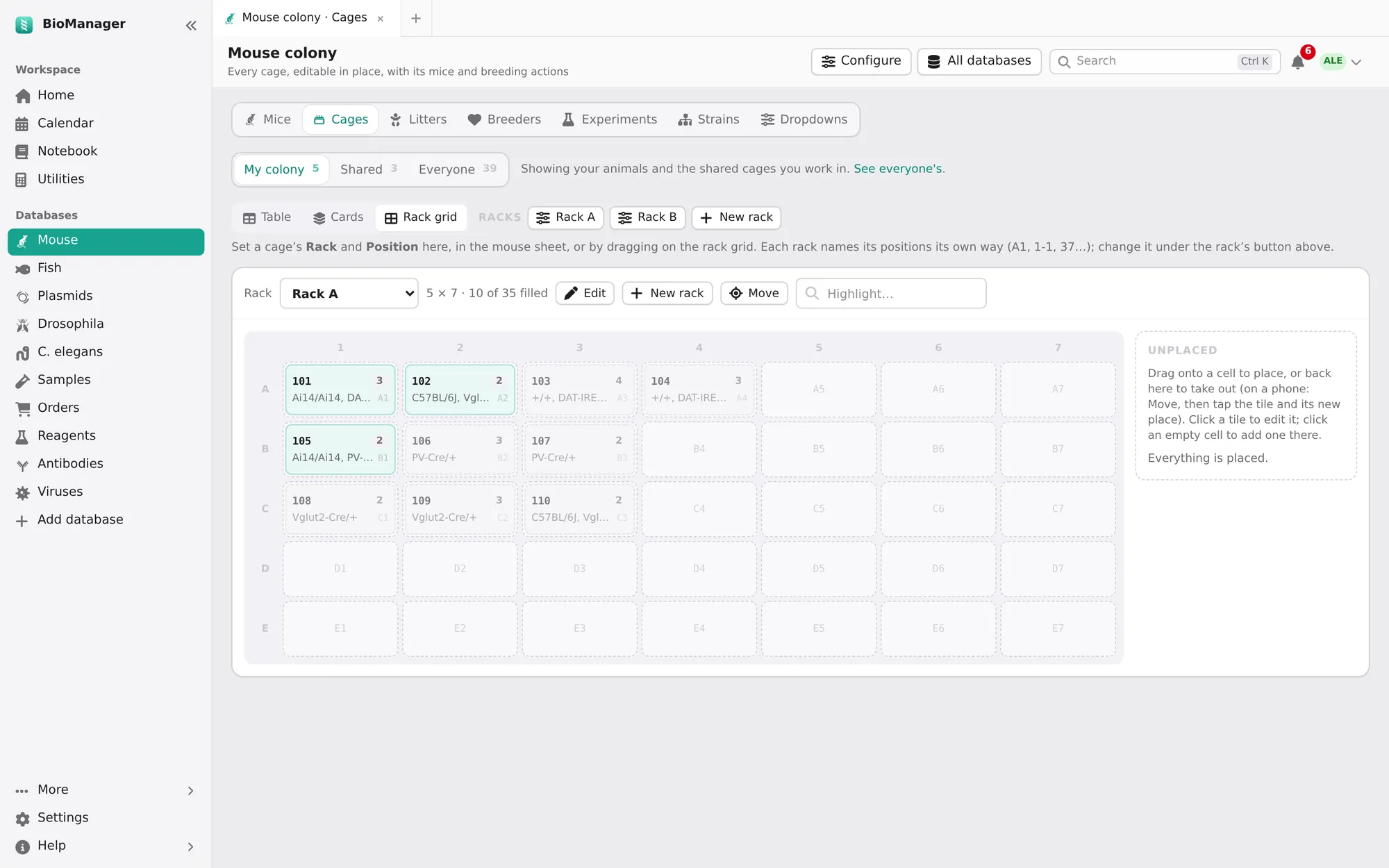
Two cages in one position. A new cage is often set up in a position before the cage there is ended, so a position can hold more than one cage. The cage's form, the sheet, an import or an assistant's proposal puts it there and says which cage with living mice is there already. The rack grid shows the cage put there last (one with living mice before an empty one) and marks the position with ! while two or more there have living mice. Hover over or tap the ! to list every cage in that position, and click one to open it, move it or end it. Empty and ended cages don't count. Dragging a cage onto a position still swaps it with the cage shown there.
Changing a rack's layout. A cage's place is kept as a row and a column, and the rack's layout gives it its name.
So when you change the rows, the columns or how positions are named (Edit on the rack grid), cages with living
mice or not may get another position name though nobody moved them: swap letters and numbers, and the cage at
F7 would read G6. Before saving such a change, BioManager lists every cage it touches, with
its position now and after each choice, and asks:
- Keep each position name (chosen first when the naming changed):
F7stays F7 and moves to the cell that is called F7 now. - Keep each in the same cell: the cage stays in its row and column, and its position name changes.
A cage whose name or cell the new layout doesn't have (a smaller rack) stays in the rack with no position, under Unplaced, and the dialog counts them, and any position that would hold more than one cage with living mice. Cancel saves nothing. Renaming a rack, or making it bigger, asks nothing. The change and the moves are one batch, so Batch history can undo them together. Fish racks, fly and worm racks, inventory boxes and plasmid boxes ask the same.
Mice
- New mouse for one, Add many for a new group (or a CSV made from its Download a template), and
Import from Excel for the sheet you already keep (how). In Add many, type
newas the cage to put a group in one new cage; with females and males, each sex gets its own new cage unless you tick Keep both sexes in one new cage. In the preview,new-2,new-3… are further new cages, and a new cage that would hold both sexes is pointed out. - A mouse's form, and a cage's, slide in at the right of the window with the sheet still beside them. Sex is a row of buttons; Transgene 1 shows, and Add a transgene the next. Pick a rack and it is drawn under Position: click a free place to fill in the position, or, for a mouse, a cage to put the mouse in it. ⌘/Ctrl ↵ saves.
- Adding several mice by hand? Tick Add another after this beside Create mouse. Each save keeps the form open for the next mouse, with its strain, cage, sex and the rest still filled in; the tag and note are cleared, and the form shows the next free ID. The sheet shows the new mice when you close the form, and the box stays ticked until you untick it.
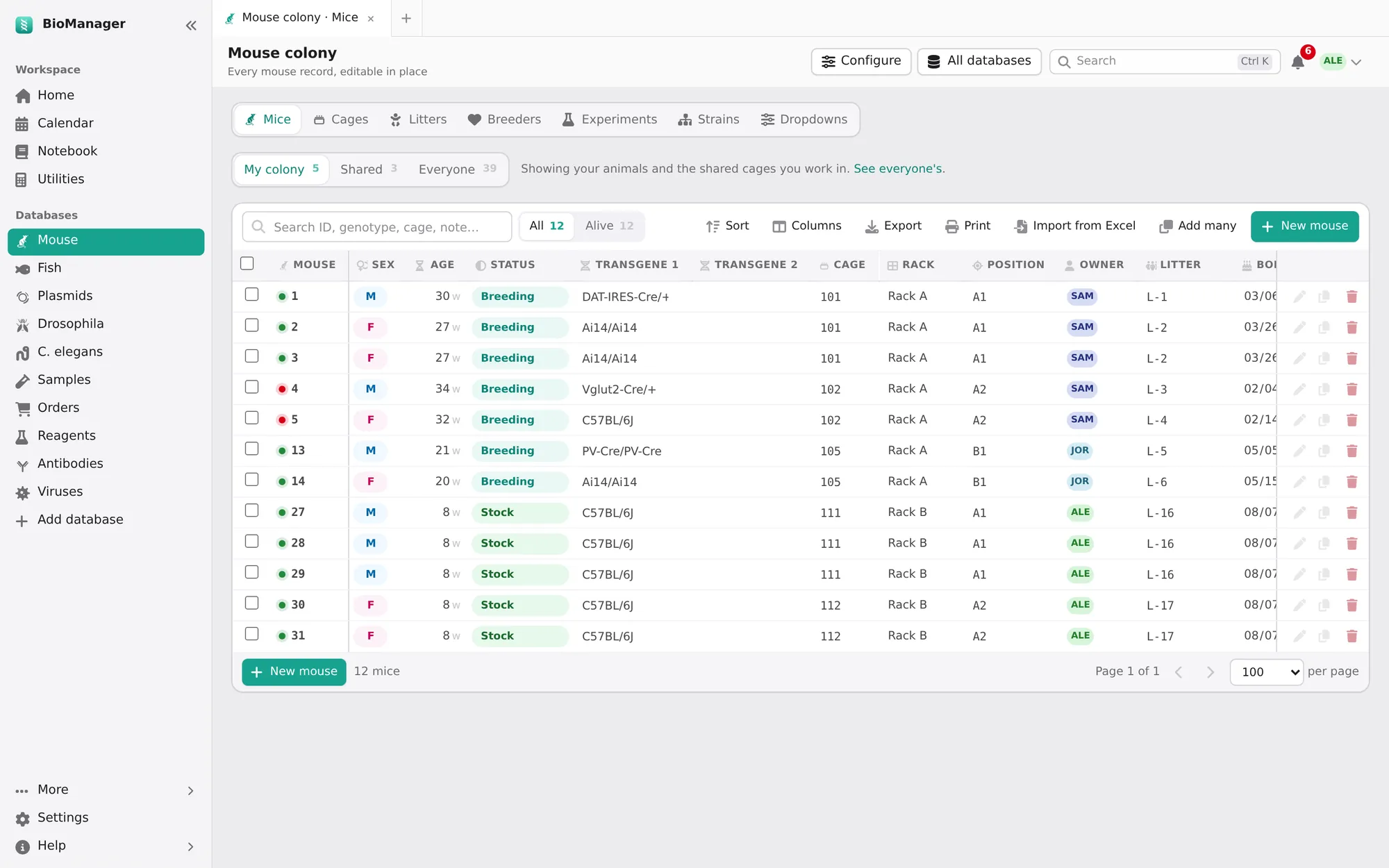
- Each mouse has a Custom tag, strain, sex, date of birth (age shown in weeks), status — breeder, experiment, geno, transfer, sac — up to four transgenes, a genotype, cage, litter, owner and notes. A date of birth or of death can't be in the future, and a mouse's owner is someone in the lab. The same holds when an AI assistant or a script changes it.
- The number BioManager gives a mouse is its identity: handed out in order, never reused, and what its samples, cage card and experiments all link by. Custom tag, beside it, is however the animal itself is marked — an ear tag number, an ear punch such as RF or LB, a tail tattoo, or your lab's own way. Two mice may carry the same mark, search finds a mouse by it, and a spreadsheet column called custom tag, ear tag, notch, tattoo or tail tattoo comes into it when you import. Point at a mouse's number and its tag shows there too. If your lab doesn't mark its mice, untick Custom tag under Columns to hide it.
- Strain, after the custom tag, is the mouse's background: C57BL/6J, BALB/cJ, 129S1/SvImJ, FVB/NJ and the other strains most labs keep are offered as you type, and you can type one of your own. Change the list on the colony's Dropdowns tab, under Strain. Add many sets one strain for the whole batch, search finds a mouse by it, and a spreadsheet column called strain or background comes into it when you import.
- Select mice to set a field (owner, status, strain, sex, transgenes, cage, litter, date of birth, date of death, note, or one of your own columns), Add to experiment, or Sac. A date of birth belongs to the litter: when you select every mouse of a litter, the litter itself takes the new date; mice picked from part of a litter move together into a new litter of that date. Setting sac or a date of death ends the record; it stays in the history.
Breeding: from litter to weaning
Set up a mating by putting the breeders in a cage whose purpose is Breeding. On the Cages tab, open it (its arrow or mice count) or find its card under Cards: Litter born, Genotyping and Wean are there, and only on Breeding cages. Create litter numbers each litter L-1, L-2, L-3… (type your own ID instead if you like).
- Litter born asks for the date of birth (today unless you change it; a date in the future is refused) and, if you know them, the pups, the father and the mother, and records the birth; none of it is required. BioManager works out weaning (P21) and genotyping (P28), or the days set in Settings → General, which appear on Home and the calendar when due — the same list in both. A cage can have two litters at once (a trio's second female): when it has one not yet weaned, Litter born asks whether this is Another litter, kept beside the first with its own dates, or Correct the date of the first. The cage then lists each litter with its age, and Home and the calendar show each one, with the day it was born.
- Genotyping asks for the mouse numbers of the father and mother, and how many pups were born, filled in from Litter born when you gave them there; Create litter makes the litter and a mouse for each pup, set to geno. They wait in the genotyping queue on Home until you change their Status from geno; entering a genotype alone doesn't take them off it. With two litters, it asks whose pups, the oldest not yet genotyped first.
- Wean opens Wean and distribute pups, already filled with the cage's pups, females and males on separate rows: Wean and move sends each row to a new or existing cage, or Mark weaned, move pups later. Either way the litter is marked weaned and leaves Home and the calendar. Pups younger than P18 are weaned only after you confirm. With two litters, it asks which, the oldest first; the other stays, with its own weaning date.
Breeders lists the Breeder cages, the lab's breeding stock: rack and position, and how many of each sex. Above them, the breeders in Breeder and Breeding cages are counted by genotype, and breeders past 30 weeks are flagged. Pick takes a breeder as yours to set up a mating; its owner is notified. A Breeder cage left empty for over 90 days, and a mouse in one that ended that long ago, aren't listed; Show them at the top lists them too. In a lab with hundreds of Breeder cages the first 100 are shown, with Show 100 more under them; the search and Alive only still look through every cage.
Experiments, strains, dropdowns
- Experiments group mice into a cohort with treatment groups, what is done to them day by day and their body weights: see Experiments, for every animal. (The notebook's experiments are the write-ups; these are the animals.)
- Strains is the lab's reference list of lines and alleles.
- Dropdowns keeps the choices each column offers, so the lab uses the same words. Pick a column on the left (Status, Cage purpose, Strain, Genotype, Sex, Owner) and its choices are listed in the order its dropdown shows them, each with how many mice or cages have it. An admin renames one where it stands (and is asked whether to change it on those records too), drags it (or presses Alt+↑/↓) to move it in the dropdown, removes it with × (the records that have it keep it, or get another choice in its place), and adds one, or many pasted a line each. In the records, but not a choice lists words typed in the sheet that aren't one yet, with Make it a choice. The built-in statuses and sexes are always there; Breeding and Breeder keep their names. Everyone sees the choices; only admins change them.