 BioManager
User guide
Using BioManager
Everything BioManager does, and how to move a lab into it — from a first launch to a whole lab on a shared server. New here, or coming from spreadsheets? Read Coming from Excel first: it takes ten minutes and saves you days.
Part one
Start here
What BioManager is
BioManager is one place for what a biology lab keeps: animals (mice, zebrafish, flies, worms, or any organism you describe), plasmids, samples, orders, reagents, antibodies and viruses, with a calendar and a notebook beside them. It looks and edits like a spreadsheet, but underneath it is a database that understands your lab: it knows a mouse lives in a cage on a rack, that a litter born today is weaned at P21, that a vial at 18 °C is flipped half as often as at 25 °C, and that an antibody expires next month.
It comes in two forms, the same program in both:
| Desktop app | For one person. macOS, Windows or Linux; your data stays on your computer. |
|---|---|
| Lab server | For a whole lab: one BioManager that everyone opens in a browser, the Android app, or from an iPhone's home screen. Usually free to host. Every way to run one. The desktop app can set one up for you: Settings → Set up a lab server asks where it should go, does the work, and can bring your records along. |
Coming from Excel
If your lab runs on spreadsheets, you already know most of BioManager. The sheet is still there — click a cell and type — but each thing Excel makes you do by hand, BioManager does for you.
What you know, and what it becomes
| In Excel | In BioManager |
|---|---|
| A workbook with a tab per thing | Your lab, with a database per thing in the sidebar: Mouse, Fish, Plasmids, Orders… |
| A row | A record with a number that is never reused, so "mouse 1042" means one mouse forever. |
| Typing, then Save, then "who has the file open?" | Type in the cell; it saves as you type. Everyone edits the same records at once, and nobody's work overwrites anyone else's. |
| AutoFilter | The search box and the chips above every sheet: All, Alive, Mine, one per status. Your last choice is remembered, and it is in the page's address, so a bookmark or a link you send opens the sheet the same way. |
| Freeze panes, hide columns, column widths | The ID stays pinned as you scroll; Columns hides and shows; drag a column's edge to resize. Remembered per sheet. |
| Data validation drop-downs | Choices for a column (statuses, categories, purposes), set in Configure or Dropdowns. Renaming one renames it everywhere. |
| Autocomplete from the column | Suggestions from everything the lab typed before. In inventories, picking an earlier item fills in its vendor, catalogue number and price. |
| Fill down, copy a row | In the mice's Add many preview, click a cell and Fill down (or Ctrl/⌘ + D) copies it to the rows below. Duplicate copies any record. |
| Paste a column | Copy a column of readings (a Nanodrop export, say) or a block of cells, click the first cell in the sheet and paste: the values go down the rows as shown, and across if you copied several columns, each saved as if typed. A number steps over a choice column it isn't one of (the unit between concentration and A260/280), and a note says which rows it went into, first to last, so a list in another order shows at once. |
| Formulas for age, wean and flip dates | Worked out for you: ages, P21 weaning, genotyping dates, flip schedules that follow the incubator's temperature. |
| Conditional formatting | Status pills, a dot for what is alive or in use (coloured by age for animals), expired stock in red — and the Home page gathering everything that needs you today. |
| VLOOKUP between sheets | Real links: a mouse is in a cage on a rack; a sample came from that mouse; an order became that reagent. Click through. |
| Version history, "who changed this?" | The Audit log records every edit, who made it and what it was before; Batch history undoes any bulk change. |
| Mail-merge for cage labels | Cage cards sized for card stock, each with a QR code that opens the cage on a phone. |
| Your old workbook | Import from Excel on every database reads it as it is, whatever its columns are called. |
| Save As CSV | Export on every sheet (CSV; for mice also Excel and PDF). Your data is never locked in. |
Once BioManager is installed and the lab is set up, bring your sheets in: about half an hour.
Install and set up
Get it
| macOS | Download, unzip, drag BioManager into Applications. The first time, right-click it → Open, then Open. |
|---|---|
| Windows | Extract the zip, open the BioManager folder, run BioManager.exe. At the warning choose More info → Run anyway. Its window uses Microsoft Edge WebView2, which Windows 11 has; on a Windows 10 PC without it, BioManager offers to download it from Microsoft and opens in your web browser meanwhile. Install it, then open BioManager again for its own window. |
| Linux | Mark BioManager-Linux.AppImage executable (right-click → Properties, or chmod +x) and open it. |
| Updates | The desktop app checks for a new version once a day and offers it, with what's new; BioManager →
Check for Updates… (on Windows and Linux, Help) asks now. Install and Restart downloads it, checks it, and
swaps it in as the app quits; where it can't (the Linux .tar.gz, a folder it can't write to), it opens the download
to install as above. Your data stays where it is, and before a new version changes it a copy is kept
(Your data). Turn the daily check off with Check for Updates Automatically. |
| What's new | After an update, on a desktop or a lab server, the first page you open shows a short What's new: what is new, what works differently and what was fixed, with a link to the full notes. Got it closes it for good; Help → What's new opens it again. |
| A lab server | Nothing to install: open the address your admin gives you. A welcome page shows what BioManager does and leads to Sign in or Create an account. Setting one up is on Run it for your lab. |
| Phones | The Android app, or your lab server added to an iPhone's home screen: see Phones and cage cards. |
The set-up survey
The first account is the lab's admin (on a server, it needs the one-time setup code printed when the server started). The admin then answers a short survey, and BioManager builds exactly what you'll use — nothing more:
- Your lab — its name, time zone, how dates are written and the genotyping day (what these do).
- What does your lab keep? Tick animals and stocks (mice, zebrafish, flies, worms, other organisms) and molecular and supplies (plasmids, samples, orders, reagents, antibodies, viruses). For each, a little more: a name (e.g. Mouse room B); for the colony how many racks, their size and how positions are labelled; for flies and worms which incubator temperatures you run. Blank means the usual.
- Which lab functions? The calendar and the notebook.
- What may members do? Whether members may create databases of their own, whether they may add databases for the whole lab, whether they may keep a copy of the lab on their computers, and whether they may make API tokens.
Below the questions, Send BioManager's makers anonymous counts once a day is ticked; untick it if you'd rather not (what is sent).
BioManager then makes those databases, the racks and incubators too, and takes you Home. Everyone who joins later gets a one-page welcome tour of the lab's databases on first sign-in (Settings → See the welcome tour again brings it back).
Bring your lab in
About half an hour, once the lab is set up. There are two ways in: Import from Excel for the sheets you already keep, and Add many for a new group you describe once.
- Make your racks first. Cages → Rack grid → New rack, named as in your sheet and labelled like the stickers on the real racks. Then a sheet with Rack and Position columns puts every cage in its place; anything without a position waits in Unplaced for you to drag on (on a tablet: Move, tap the cage, tap its place).
- Open Import from Excel. Every database has it in the toolbar above its sheet — Mice, Fish, Plasmids, fly and worm
vials, any organism and every inventory. Choose a file (
.xlsx, CSV or TSV, up to 15 MB and 5,000 rows) and press Continue. If the workbook has several sheets, pick one above the matches. No template, no renaming columns. - Check how the columns were matched. BioManager matches by meaning, not just by name: Position,
Slot and Well are the position, DOB and Born the date of birth, Supplier the vendor,
Cat. No. the catalogue number. Where a name could mean two things the values decide — a Location of
A1,B2… is a position in a box, one ofFreezer 2is a location. Each match says why; change any of them. - Nothing is lost unless you say so. A column BioManager doesn't have becomes a new column in an inventory or
organism database (if you may configure it), or goes Into the notes as
Header: value; choose Leave out to skip it. A must-have column your sheet lacks, like the owner, gets one value for every row — for plasmids and stock, also whether every row is Personal or Lab common (a Lab common column says it row by row). Dates stay as Excel wrote them (3/14/2026,14/03/2026,12-May-26): each column decides whether day or month comes first, and when it can't tell, Lab setup's date style does. A date that can't be read, or a birth date in the future, is left blank and kept in the notes. Male, m and ♂ all become M; statuses and people are matched by name. A Cage # typed once and merged down over its mice counts for each of them, and the cages the import makes belong to their mice's owner. - Preview, then import. Preview the import runs every row through the same checks as the database's own form and lists any that would be skipped, by its row number in Excel. A Total line under the records is left out, and a mouse whose ID is already taken (in the colony, or by an earlier row) gets the next free one, with yours kept in its notes; the preview says so for each. Import 120 mice (the button counts them) saves the rest as one batch, which Batch history can undo; Change the matches goes back a step.
- A new group, not a sheet? For mice, Add many describes one mouse and how many, or loads the CSV from its Download a template. In any inventory and in Plasmids, Add many takes a list pasted straight from Excel — one name per line becomes one record each.
- Print cage cards and put them on the cages. From now on, the spreadsheet is the backup, not the record.
Home
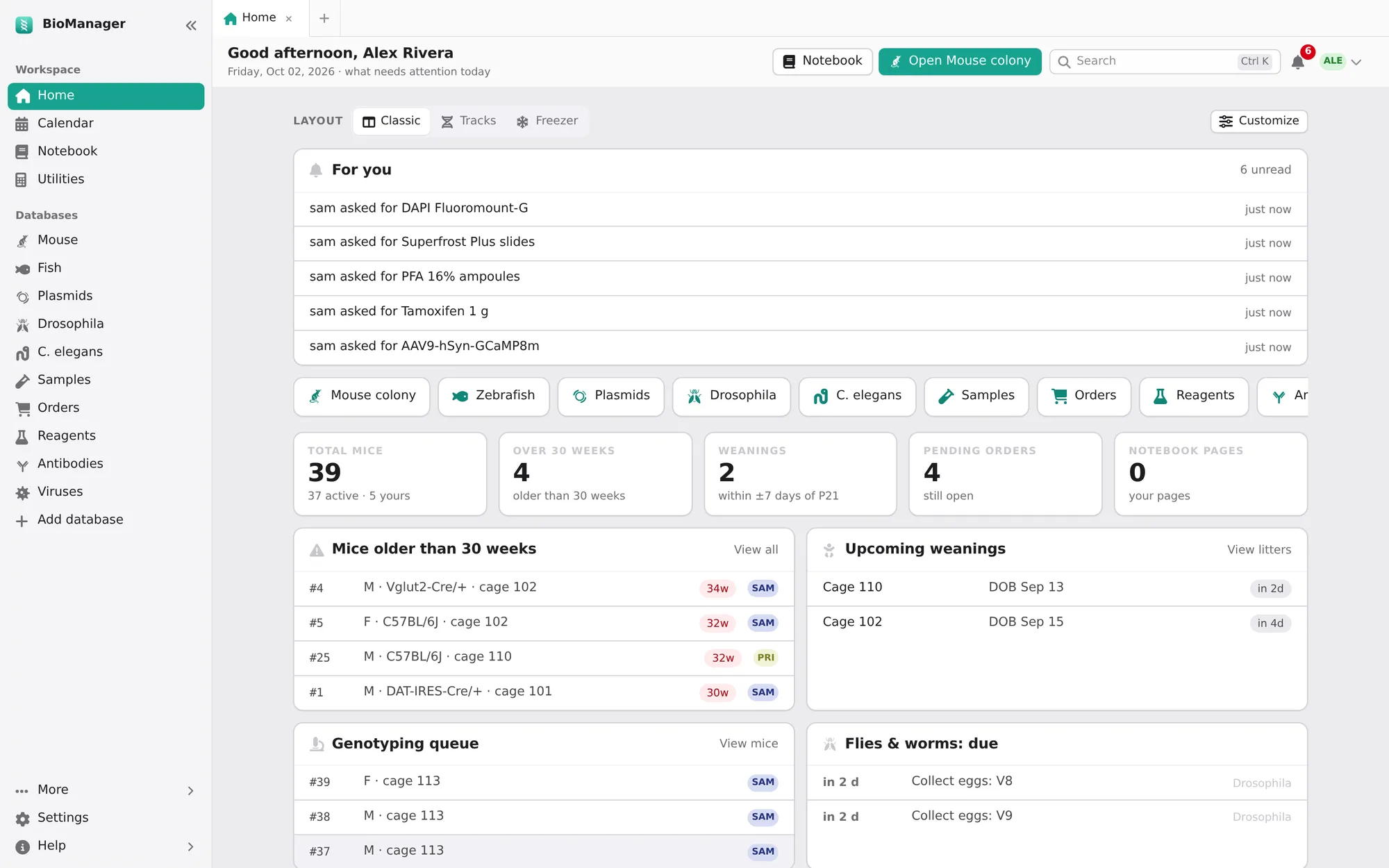
Home is where each day starts: only what needs attention, from every database you can see. Choose how it looks with the Layout chips at the top (or in Settings → Home layout); the choice is yours alone.
- Classic
- Cards: your databases as tiles, a few numbers (total mice, mice over 30 weeks, weanings, pending orders, notebook pages) and cards for Mice older than 30 weeks, Upcoming weanings, the Genotyping queue, Flies & worms: due, Animal databases: due, Expiring & low stock, zebrafish mating tanks to return, the Next 14 days and Recent orders.
- Tracks
- Every dated job on one ruler of days, one track per kind of work, coloured overdue, today, within 3 days or scheduled. Choose 1, 2 or 4 weeks. Needs you now and Busy days sit beside it. On a phone it becomes a list of days.
- Freezer
- Your racks seen from above, lit where something is due, with a Pull list of the next three days' jobs in walking order, to take into the room. A cage's cap colour shows its owner.
Customize, beside the layout chips, arranges Classic your way: tick the cards you want, drag them (or use the arrows; the double arrow sends a card to the top) into your order, and make any of them wide. Four cards start switched off and are there to add: Your to-dos (due this week or undated), Bookings (instruments booked in the next week), Recent pages of your notebook, and Calculators (the ones you opened last, then the usual ones). Back to the usual puts everything back, after asking. Like the layout, it is yours alone.
On every layout:
- For you
- Your unread notifications.
- Getting started
- While you're new, your first steps, each ticked off when it's done. An admin's list sets the lab up — add a rack, bring in your mice, print cage cards, set up your fly database, invite the lab. A member's is their own — find your mice, scan a cage card, request an order, add a plasmid, read this guide. Hide this list puts it away.
- Upcoming weanings
- The same list the calendar shows; each row opens its cage.
Part two
Everyday skills
Every database works the same way. Learn it once here.
Working in a sheet
- Edit in place
- Click a cell and type, or pick from its list. It saves as you go; a note at the bottom says All changes saved. If a change can't be saved (say, a required field emptied) the cell turns red and says why.
- The dot
- The dot beside the number means alive or usable: a living mouse, a vial in use, an open order, a reagent in stock; grey means it isn't. For animals its colour is their age: blue young, green adult, red old (mice: under 8 weeks, 8 to 30, past 30; fish: under 3 months, to 18 months, past 18; a vial or plate: progeny still developing, adults, past its flip or chunk). An expired reagent, antibody or virus is red too. Point at a dot to see what it means.
- Scrolling and New
- The page scrolls, not the sheet: its search and buttons stay at the top of the window, its column names under them, and its count at the bottom. All under per page lists every row. New, at the bottom left, adds an empty row at the end of the sheet with its first cell ready to type in. A strain, fish, line, plasmid or order needs a name or a tank first, so there it opens the form.
- Open a record
- The pencil opens the full record in a dialog, with every field, grouped. New records open the same dialog.
- Sort, Columns, Export, Print
- Sort by any column, or click a heading. Columns hides what you don't need; drag an edge to resize. Export downloads the rows you see as CSV (mice: also Excel and PDF). Print gives a clean sheet. Your sort, filters, hidden columns and widths are remembered on that computer.
- On a phone
- A sheet becomes one card per row: the number and its buttons on top, then each column by name. Columns still hides what you don't need there.
- If a save is refused
- Say a tank ID is taken: the page tells you why and reopens the form with what you typed, so you fix one field, not all of them.
- Layouts
- The layouts sit above the sheet, on the left, the same in every database. Where it fits, a sheet also shows as a Rack grid or Box grid: each tile shows its record's name and position; drag a tile to move it. On a touch screen, press Move, tap a tile, then tap where it goes — another tile swaps with it, Unplaced takes it out. Orders also show as a Board, a column per status: drag a card along.
- Suggestions
- Text columns suggest what's been typed before, so the lab spells a vendor or a unit one way.
- What ended long ago
- Mice that died, cages emptied, tubes used up and vials discarded over 90 days ago aren't listed, so a colony with years of history opens quickly. A line at the top says how many; Show them lists everything. Search still finds them, and the mouse export includes them.
Many at once
- Add many
- For a new group: describe one record and say how many. In inventories and plasmids you can instead paste a list of names, one per line. For mice, say how many females and males, or load a CSV (Download a template gives the columns); you then see an editable preview with the numbers that will be assigned. There, Fill down copies the cell you're in to every row below (Ctrl/⌘ + D too), and nothing is saved until you press Create.
- Import from Excel
- For the sheet you already keep. Every database takes an Excel workbook or CSV, with any columns: you check how they were matched, see a preview of what would be created and which rows would be skipped, then import them as one batch you can undo. See Bring your lab in.
- Select and act
- Tick rows (shift-click selects a range) and a bar rises from the bottom: set a field, move, change owner or status, sac, retire, delete. Set field sets any column on them, your own columns included (a date column takes a date, a number column a number). Records you may not change are skipped and counted, never silently changed.
- Duplicate
- Copies a record as a new one of yours — the next aliquot, or the same order again.
Finding things
- The search box above a sheet filters it as you type: an ID, a genotype, a cage, a note.
- Chips beside it narrow it: All, Alive, Mine, Lab common, a status, Expiring soon.
- Search everything with ⌘/Ctrl + K, from anywhere: mice, cages, litters, experiments, strains, vials, tanks, lines, clutches, plasmids, orders, samples, reagents, antibodies, viruses and notebook pages. Names that are, or start with, what you typed come first ("S20" finds the S20 tubes before a note about an S200 column), and a lot or catalogue number typed in full comes before anything that merely contains it. Arrows to move, Enter to open.
- Tabs. Following a link moves the tab you're in; + opens a new tab on your start page (Settings → Default landing page; Home if none). Drag to reorder, Alt (⌥ Option on a Mac) + 1…9 to jump. They're still there tomorrow, and they are yours: someone else signing in on the same computer gets their own.
Undo and history
More → Batch history at the foot of the sidebar opens it: every bulk change — an Add many, a move, a status change on fifty rows, an import — with Undo. If someone has edited those records since, BioManager says so and offers Undo anyway rather than silently overwriting their work. Everyone sees their own batches; admins see the lab's.
The Audit log (admins) records every create, edit and delete: when, who, which record, and exactly what changed —
genotype: DBH-Cre → ∅.
Notifications
The bell at the top shows what happened while you were away: someone moved your animals or vials, picked from your breeders,
recorded a genotype on your mice, an order you placed was ordered, arrived or was cancelled, someone wrote @you in a
record's notes (a reagent, an order, a plasmid, a cage) or a notebook comment, and lab news such as being made admin. Admins
are told of each new order request. A notice about one record opens that record — an order notice opens the order. A daily note reminds you of pups waiting
to be genotyped. Choose which kinds you get in Settings → Notifications;
you're never notified of your own changes.
If your server sends email, a daily digest of what's overdue or coming up — flips, weanings, returns, expiring stock — goes to the email on your profile (Settings → Reminder emails). Clear the email to stop it.
Part three
Your databases
Every database works the same way:
- Only what the lab keeps. No database is there by default — the mouse colony, zebrafish and plasmids included. The set-up survey adds what the lab uses; later an admin adds one from Add database → Ready-made databases, and takes one out under its Configure. Taking one out deletes nothing: add it back and every record is there.
- Beside every database's name, the same two buttons: Configure (if you may change it) and All databases.
- All databases lists them in two groups, Animals and Molecular & supplies, each with Open and Rename / configure.
- Its address follows its name. Rename Antibodies to Primary antibodies and it moves to
…/inventory/primary_antibodies. The old address keeps working, so printed labels, bookmarks, links in messages and@antibodies 5in notebook pages still find it. - Every database has a name of its own. A name another database has (in any case, the built-in ones included) is
refused, so
@and a database's name in a notebook page always means one database.
Mouse colony
Tabs across the top: Mice, Cages, Litters, Breeders, Experiments, Strains and Dropdowns. The My colony / My groups / Shared / Everyone switch changes what you see, never what you may edit: My colony is yours plus the shared cages you work in, My groups your project groups', Shared just the shared cages, Everyone every cage. In the Cages tab, a chip for each purpose (Experiments, Breeder…) shows only those cages.
Racks and cages
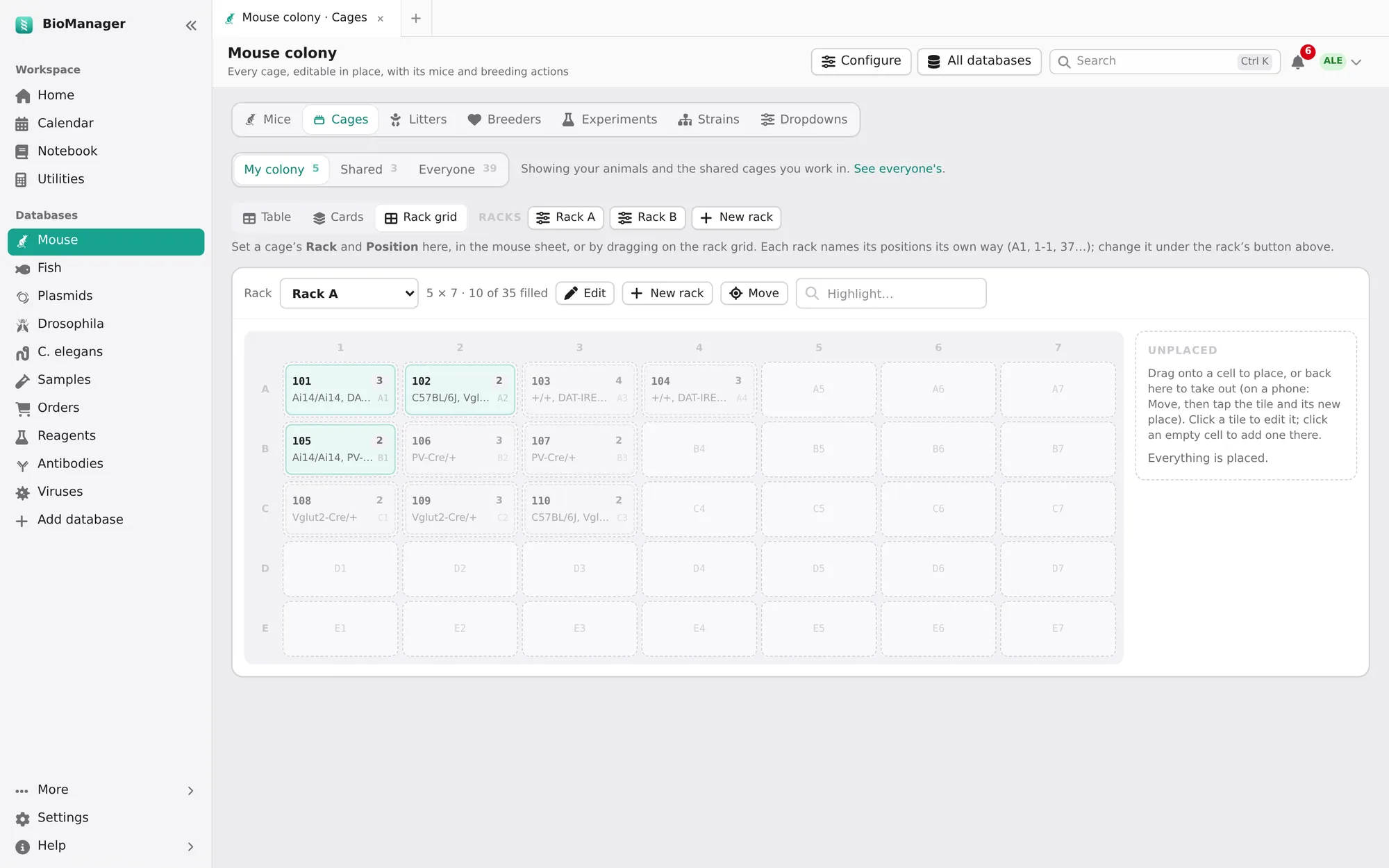
Cages → Rack grid → New rack: rows, columns and how positions are labelled — D7, 4-7,
7D or 1 to 80, like the stickers on your real racks. Cages without a position wait in Unplaced; drag them
on. Each cage has a purpose (breeding, stock, experiments), an owner, a room and its mice. Select cages to set purpose or owner,
move them, or Retire them.
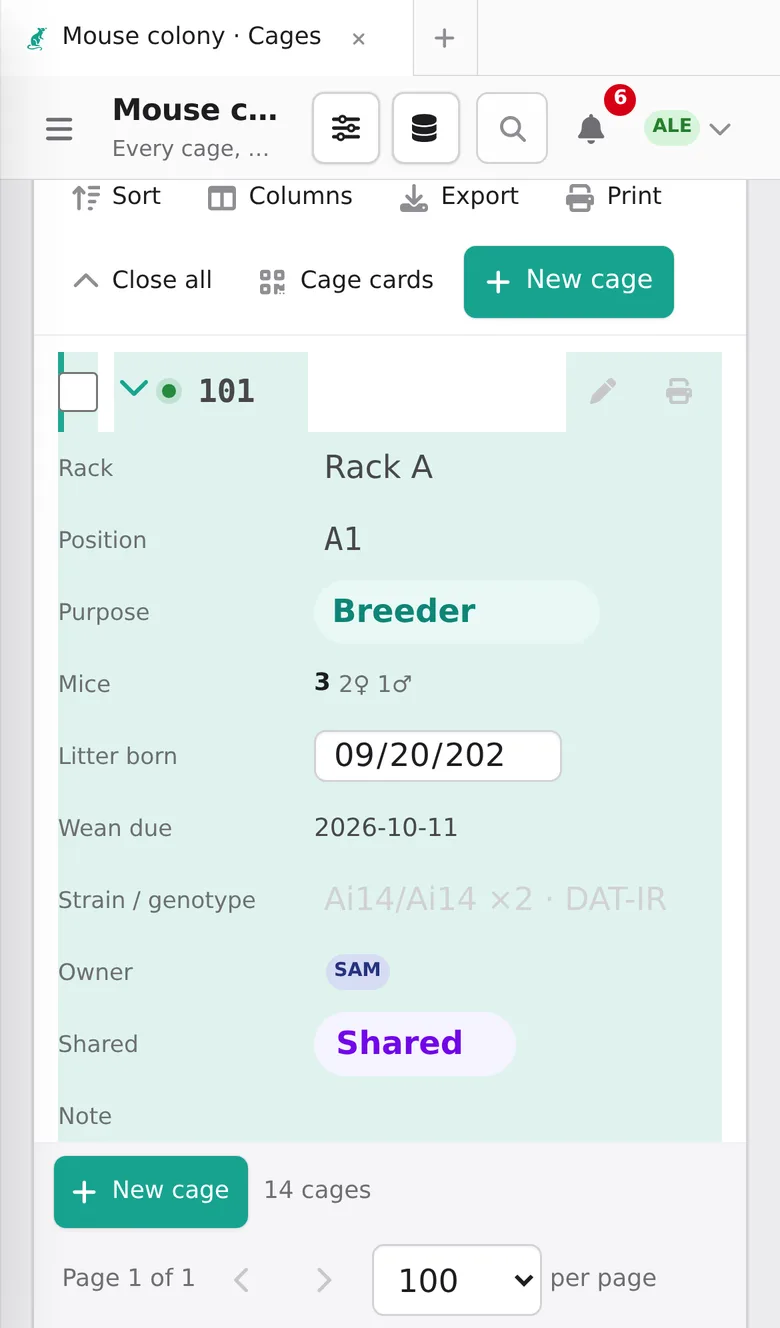
The cages show three ways. Table: one row per cage, each with its mice beneath it (edit them in place) and its actions; Litter born and Wean due come right after the mice, so when to wean is in view. Type over a cage's number to renumber it (its mice go with it; a number another cage has is refused). Close all folds every cage to its row (the page remembers), and Open all opens them again; the arrow at the start of a row or its mice count opens or closes one. Cards: a card for each cage — where it is, its purpose, owner, strain and when to wean, its mice and the same actions — with its own search and Active, Breeding, Mine filters. Rack grid: the racks from the front. The page remembers the one you used last.
Mice
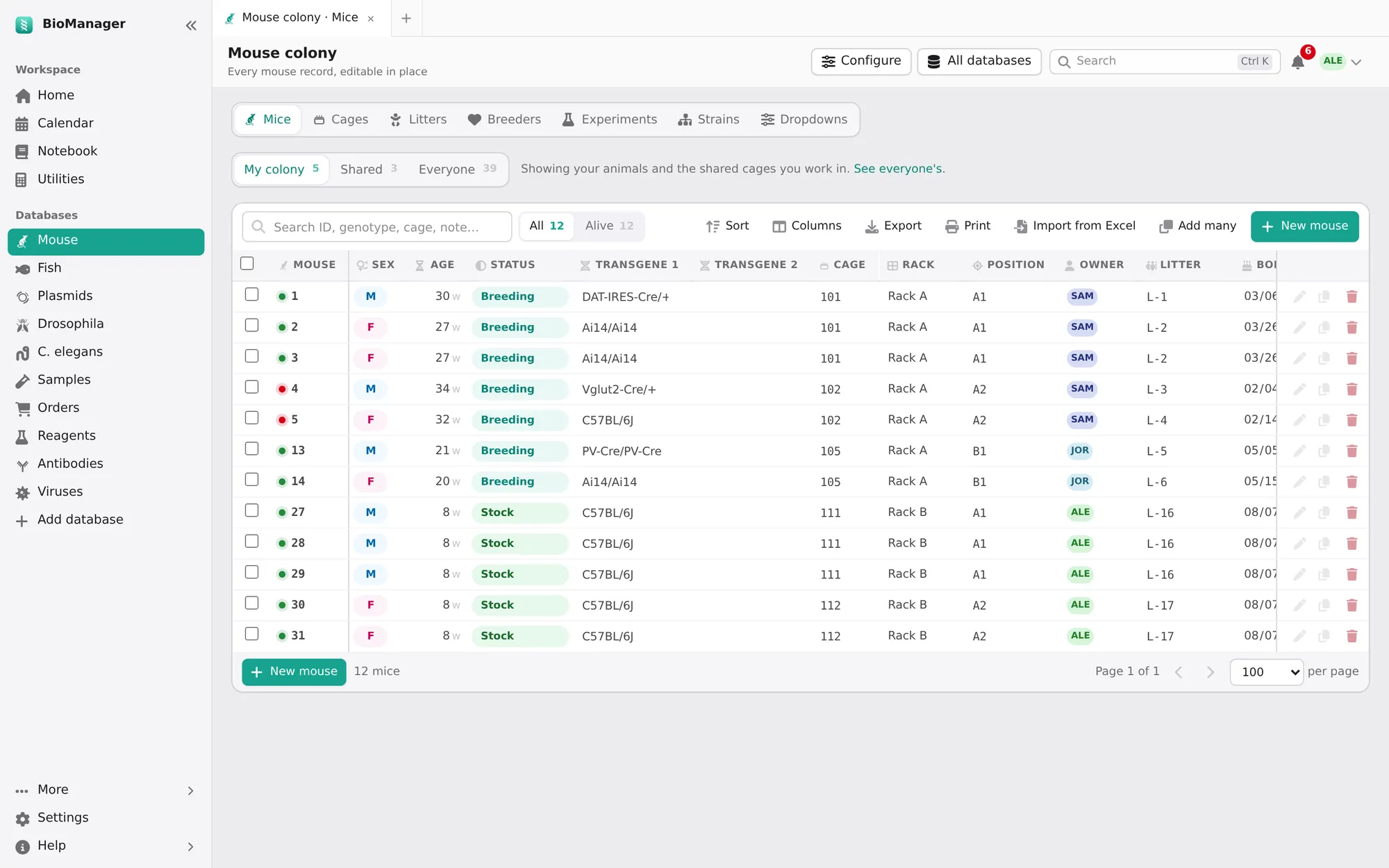
- New mouse for one, Add many for a new group (or a CSV made from its Download a template), and
Import from Excel for the sheet you already keep (how). In Add many, type
newas the cage to put a group in one new cage; with females and males, each sex gets its own new cage unless you tick Keep both sexes in one new cage. In the preview,new-2,new-3… are further new cages, and a new cage that would hold both sexes is pointed out. - Each mouse has sex, date of birth (age shown in weeks), status — breeder, experiment, geno, transfer, sac — up to four transgenes, a genotype, cage, litter, owner and notes. A date of birth can't be in the future.
- Select mice to set a field (owner, status, transgenes, cage, note, date of death), Add to experiment, or Sac. Setting sac or a date of death ends the record; it stays in the history.
Breeding: from litter to weaning
On the Cages tab, open a breeding cage (its arrow or mice count) or find its card under Cards: Litter born, Genotyping and Wean are there. New litters are numbered L-1, L-2, L-3… (type your own ID instead if you like).
- Litter born asks for the date of birth (today unless you change it; a date in the future is refused) and records the birth. BioManager works out weaning (P21) and genotyping (P28, or the day chosen in Lab setup), which appear on Home and the calendar when due — the same list in both. A cage holds one litter date, so a new litter replaces the last: if those pups are still in the cage, wean them first.
- Genotyping asks for the father, mother and number of pups; Create litter makes the litter and a mouse for each pup, set to geno. They wait in the genotyping queue on Home until their results are entered.
- Wean opens Wean and distribute pups, already filled with the cage's pups, females and males on separate rows: Wean and move sends each row to a new or existing cage, or Mark weaned, move pups later. Either way the litter is marked weaned and leaves Home and the calendar. Pups younger than P18 are weaned only after you confirm.
Breeders lists breeding cages — rack and position, how many of each sex — with their productivity, and flags breeders past 30 weeks. Pick takes a breeder as yours; its owner is notified.
Experiments, strains, dropdowns
- Experiments group mice into a cohort with treatment groups, what is done to them day by day and their body weights: see Experiments, for every animal. (The notebook's experiments are the write-ups; these are the animals.)
- Strains is the lab's reference list of lines and alleles.
- Dropdowns keeps the choices each column offers, so the lab uses the same words. Everyone sees them; only admins change them.
Zebrafish
- Tanks
- New tank or Add many (consecutive IDs), on a table or a rack grid. Purposes: stock, breeding, mating, experiment, quarantine. Select tanks to set purpose or owner, move, or mark genotyping. The tank view also has the Sacrifice log.
- Fish
- A group with a headcount, or individuals when you need them; statuses alive, transfer, geno, sac. Move or sac a selection.
- Clutches
- Set up a mating: the male and female tanks, how many of each, and when they go back. Mating tanks due back show on Home until you mark them Returned. New clutch records each fertilisation.
- Experiments
- Fish rows, a tank's fish or a clutch's larvae under a treatment, following their survival, length or a phenotype; New experiment can start with a tank's fish. See Experiments.
- Lines
- Your line catalogue with ZFIN names and founders.
- Water
- Add system for each recirculating system, and Log reading for temperature, pH, conductivity and salinity, with a chart. Tick Raise an alarm with this reading to flag a problem.
Flies and worms
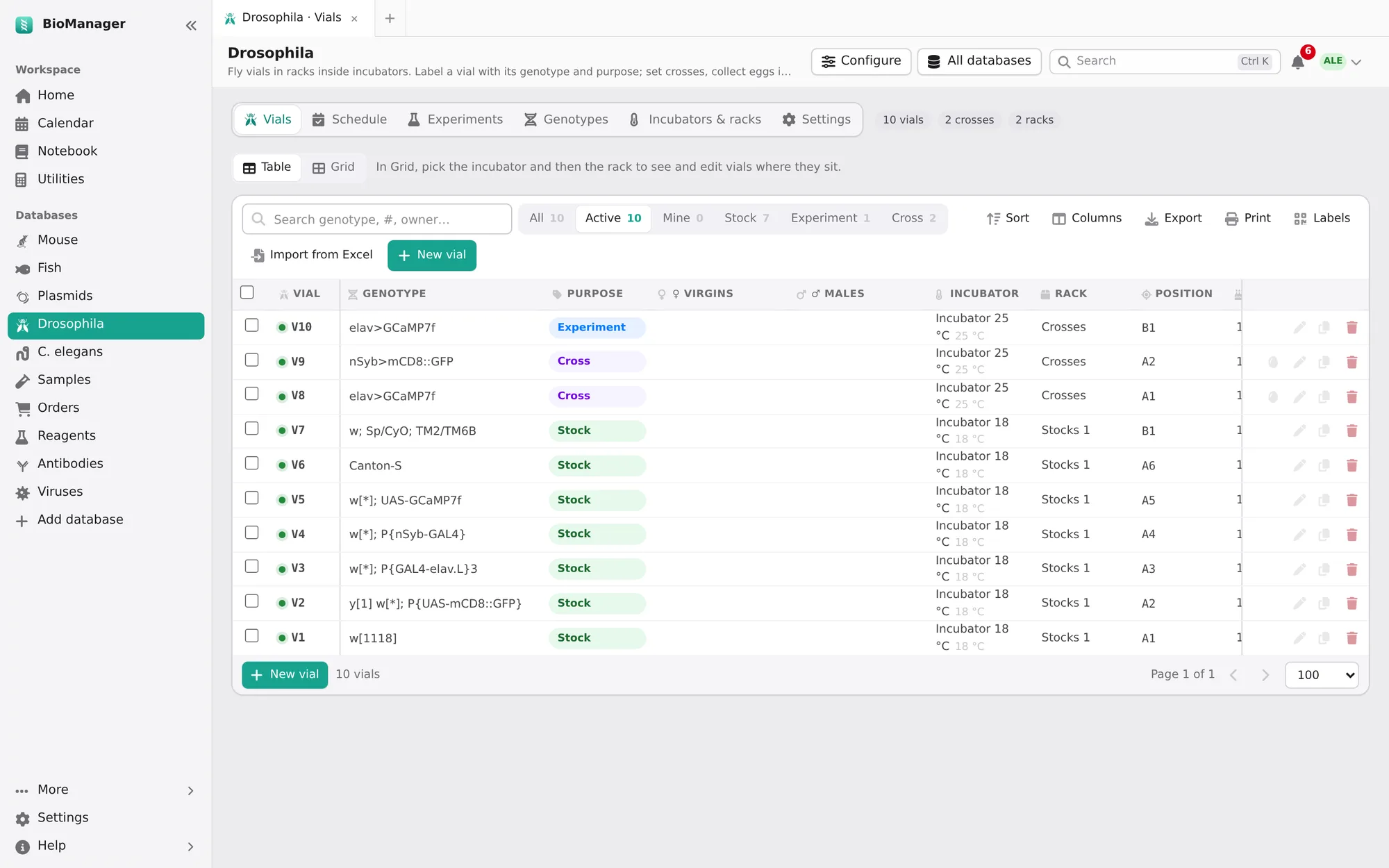
Drosophila keeps vials in racks inside incubators; C. elegans keeps plates in boxes. Tabs: the vials or plates, Schedule, Experiments, Genotypes, Incubators & racks, Frozen (worms) and Settings.
- Under Incubators & racks, add each incubator with its temperature, then racks or boxes inside it.
- New vial (or plate): genotype, purpose and position. Fly purposes: stock, experiment, cross, virgins, progeny, expansion, backup. Worm purposes: maintenance, experiment, cross, progeny, synchronized, RNAi, males, starved.
- Schedule shows what's overdue, today and coming up in the next 7, 14 or 30 days. Mark vials Flipped (worms: Chunked), Collect eggs into a new vial (worms: Pick progeny), and record scoring. Intervals follow the temperature: set them under Settings → Temperatures and timing, and a rack moved from 25 °C to 18 °C changes its schedule by itself.
- In Grid, the line above a rack says when it was last flipped and when the next is due (red when overdue), and Flipped today beside Edit records a flip of the whole rack in one click (the rack list under Incubators & racks has the same button). Hover over the line for the rule it follows, e.g. every 14 days at 25 °C.
- Worms: New frozen lot records a freeze; thaw one onto a new plate when you need it.
Discard retires a vial (it can be restored); Copy to a new vial starts the next generation. Settings also renames the words and purposes to your lab's.
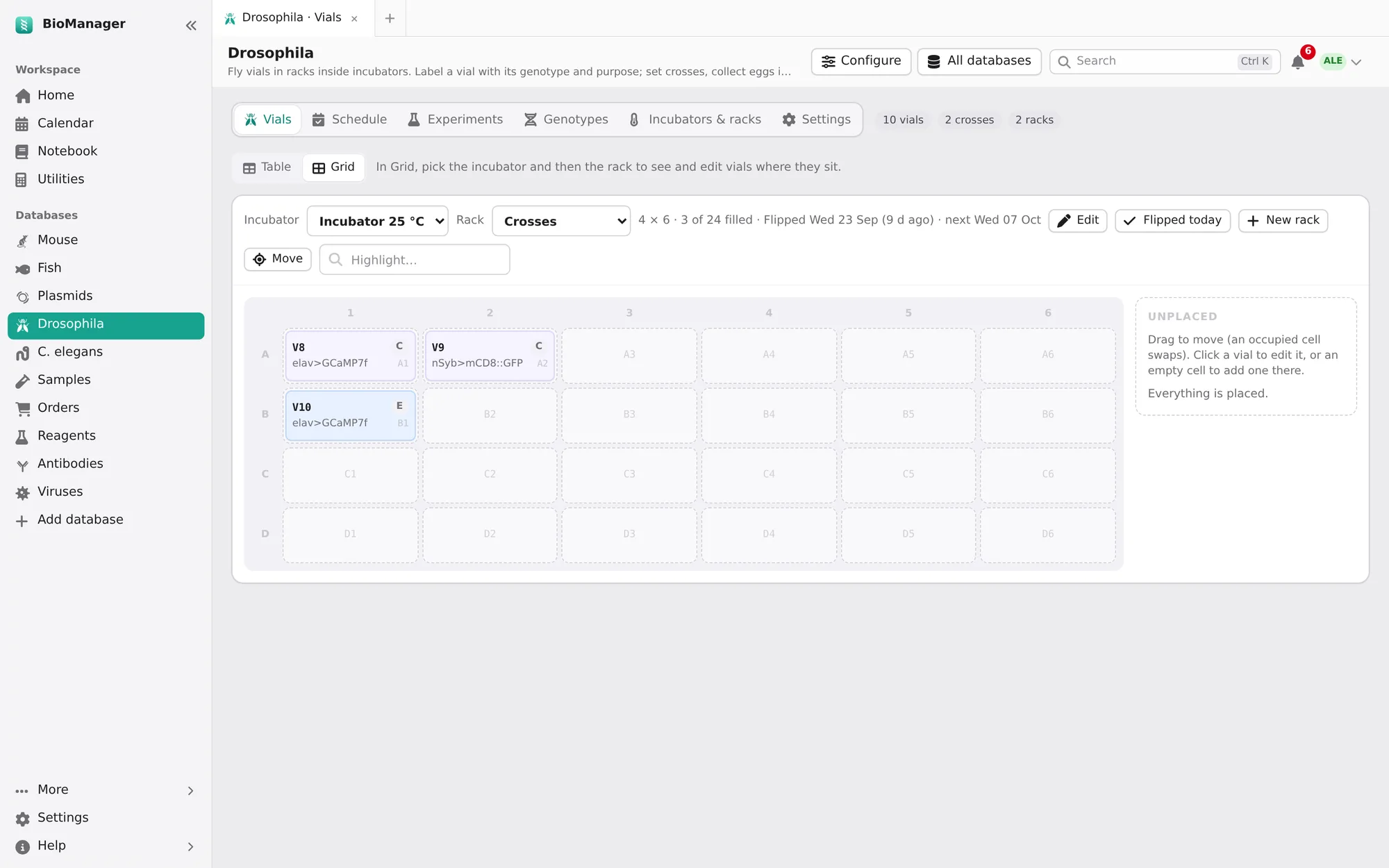
The Experiments tab puts vials or plates under a drug, RNAi or a temperature shift and follows their survival; New experiment can start with a rack's vials. See Experiments.
Any other organism
Add database in the sidebar builds a database for anything else — Xenopus, axolotls, cell lines, yeast. Start from a mouse-like, zebrafish-like or blank organism and describe it:
- Name and vocabulary — what to call an animal, its housing (tank, cage, plate), a line, a birth cohort and a breeding event, and whether age is shown in days, weeks, days post-fertilisation, generations or passages (then Age shows the record's own Passage or Generation column, P12). The whole interface then speaks your words.
- How animals are counted — individuals, groups with a headcount, or groups with individuals when needed.
- What it does — tick what you need: housing and rack positions, lines, crosses and cohorts, pedigree, genotyping, schedules worked out from dates, environment readings, health, weights, a cull log, cryo stocks and more. Each has a one-line hint on the page. On the Schedule, Done takes the day it was really done; each rule counts from its own last Done, so feeding every two days doesn't restart a split due every four.
- Your own columns — text, long text, a genotype code, number, date, a choice, yes/no, a lab member, a link to a line, or a web link. They are edited in the sheet like the others, and Set field sets one on every ticked row.
- Who it is for — Just me (a personal database only you and admins see) or The whole lab.
Change any of it later under the database's Configure, without losing records. The same page offers inventories (samples, orders, reagents, antibodies, viruses, primers & oligos, cell lines, a custom list) and fly or worm stock databases. An icon is picked from a grid of the icons themselves; hover over one for its name.
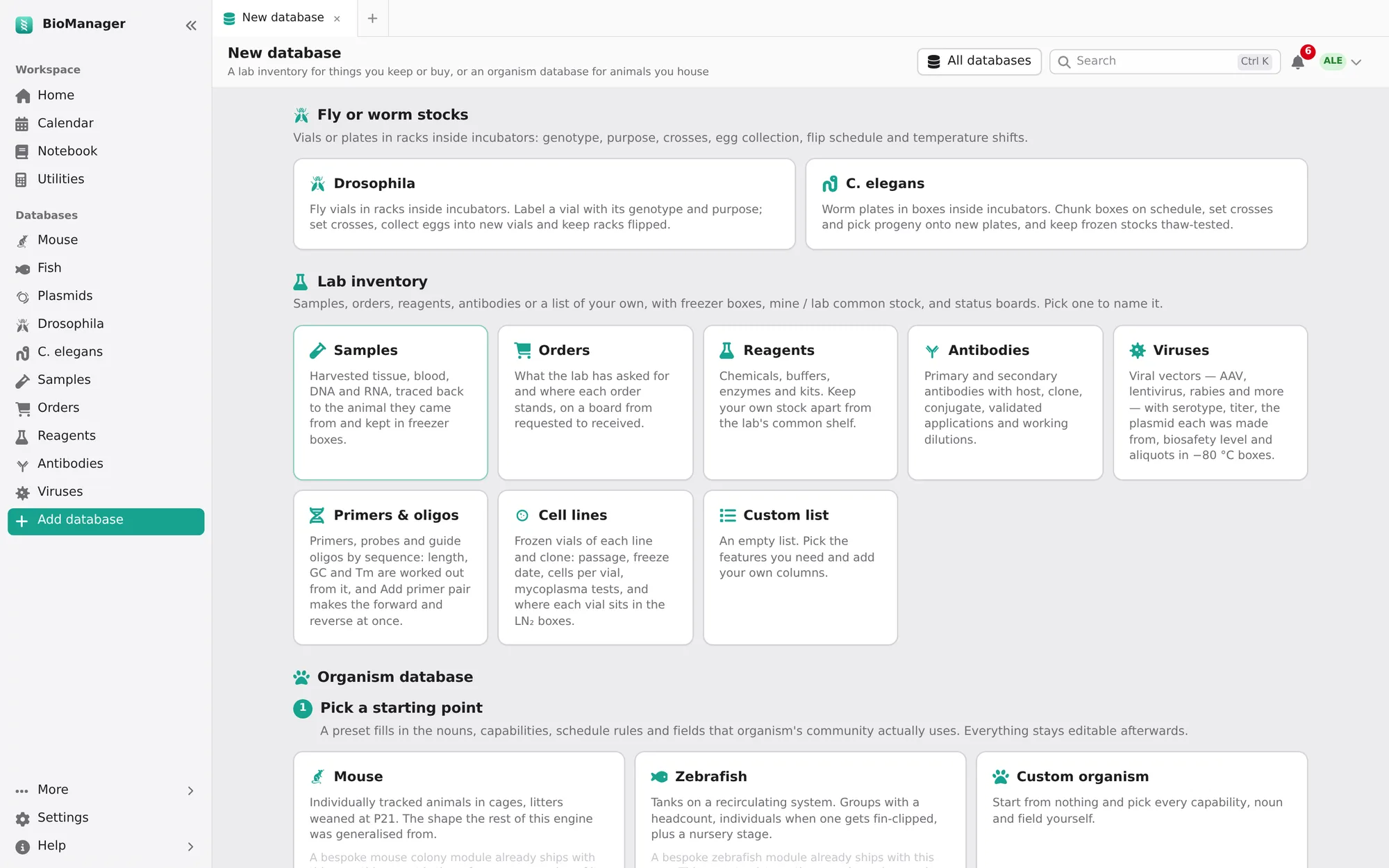
Its Experiments tab works as the mouse colony's does, for your animals, groups and cohorts, and can start with a housing's animals: see Experiments.
Experiments, for every animal
Mice, zebrafish, flies, worms and your own organisms all have an Experiments tab beside their other tabs (Mice and Cages; Tanks and Fish; the vials or plates). New experiment there can start with a whole cage, tank, rack or housing of them. One page shows each experiment, and All experiments on it goes back to the tab.
| Mice | Mice, or a whole cage. Body weight (or tumour volume, a clinical score, survival). Injections, challenges, treatments, surgery, behaviour, sampling, imaging. |
|---|---|
| Zebrafish | Fish rows, a whole tank, or a clutch's larvae. Survival (how many of those at the start are alive), standard length or a phenotype. Drug in the water, microinjection, heat shock, injury or fin clip. |
| Flies and worms | Vials or plates, or a whole rack; say how many each started with. They have no body weight: survival, or eclosion and climbing for flies, brood size and paralysis for worms. Drug in the food or on the plate, RNAi feeding, temperature shifts, starvation, infection, flipping to fresh food. |
| Any other organism | Animals, groups or cohorts, or a whole housing. Body weight, length, survival or a score. |
Any experiment can follow a readout of its own (Readout → Something else…): a number for each, or how many of those at the start.
The page
- The experiment on top: name, status, start (day 1), end, readout and description, saved as you type.
- The sheet of its animals switches between Treatment — each manipulation day a column: ✓ and the amount for each animal that got it (click to change) — and the readout, a column a day, typed in place (Another day adds one). Each animal's group is edited here too.
- Record manipulation records what was just done — the HDM group got Tamoxifen 20 mg/kg i.p. today — or a day of the regimen. For a dose per body weight it works out each animal's amount from its latest weight, and the volume given the solution (10 mg/mL). Tick the animals it was done to, pick the Reagent used (its lot is kept; an expired one is flagged) and, if you want, make a sample record for each one in Samples, with the animal as its source.
- The chart shows the readout by group over the days (the value, or its % of the first; for a count, % of those at the start). Each manipulation day is a dashed line: point at it to see what was done that day, by whom. Stars mark the days the groups differ, and Tests by day below lists each test (Welch's t-test for two groups, one-way ANOVA for more, χ² for counts), each day on its own.
The regimen
Regimen lists what is to be done and on which days: the kind, what, dose, route, solution, group and days
(1, 2-5, 2/3/4/5, 1, 8, 15). Day 1 is the start date. The days to do
are on the calendar, and the experiment's owner gets a notification each morning of what is due (turn it off in
Settings → Notifications → Experiments). Nothing is done until someone records it on the page. Save as a
regimen… keeps it to plan the next cohort from.
At the bench, and afterwards
- Bench mode (scan its QR code with a phone): pick what you are doing, then one animal at a time with big numbers — type each weight or count, or give each today's manipulation and tap Given ✓; record it at the end. Scan a card reads a cage, tank or vial card with the phone's camera and jumps to the animal in it.
- Export downloads an Excel workbook: the readout, long (for Prism or R) and wide, each animal's manipulations, and the tests by day.
- Add to notebook makes your notebook page for the experiment, with a live view of its manipulations and readout
(
/experimentadds one to any page; Freeze a copy keeps it as it is now).
Plasmids
- Show them as a Table, by storage Boxes, or as a List; chips for Mine, Has sequence, In a box.
- Sequence, beside each plasmid's number in the table, opens its sequence and map (Add sequence when it has none yet); the number opens the same page.
- New plasmid takes a name, backbone, insert, resistance, owner and a box position (blank takes the next free one) —
or paste a list of names to make several. Drop in a SnapGene
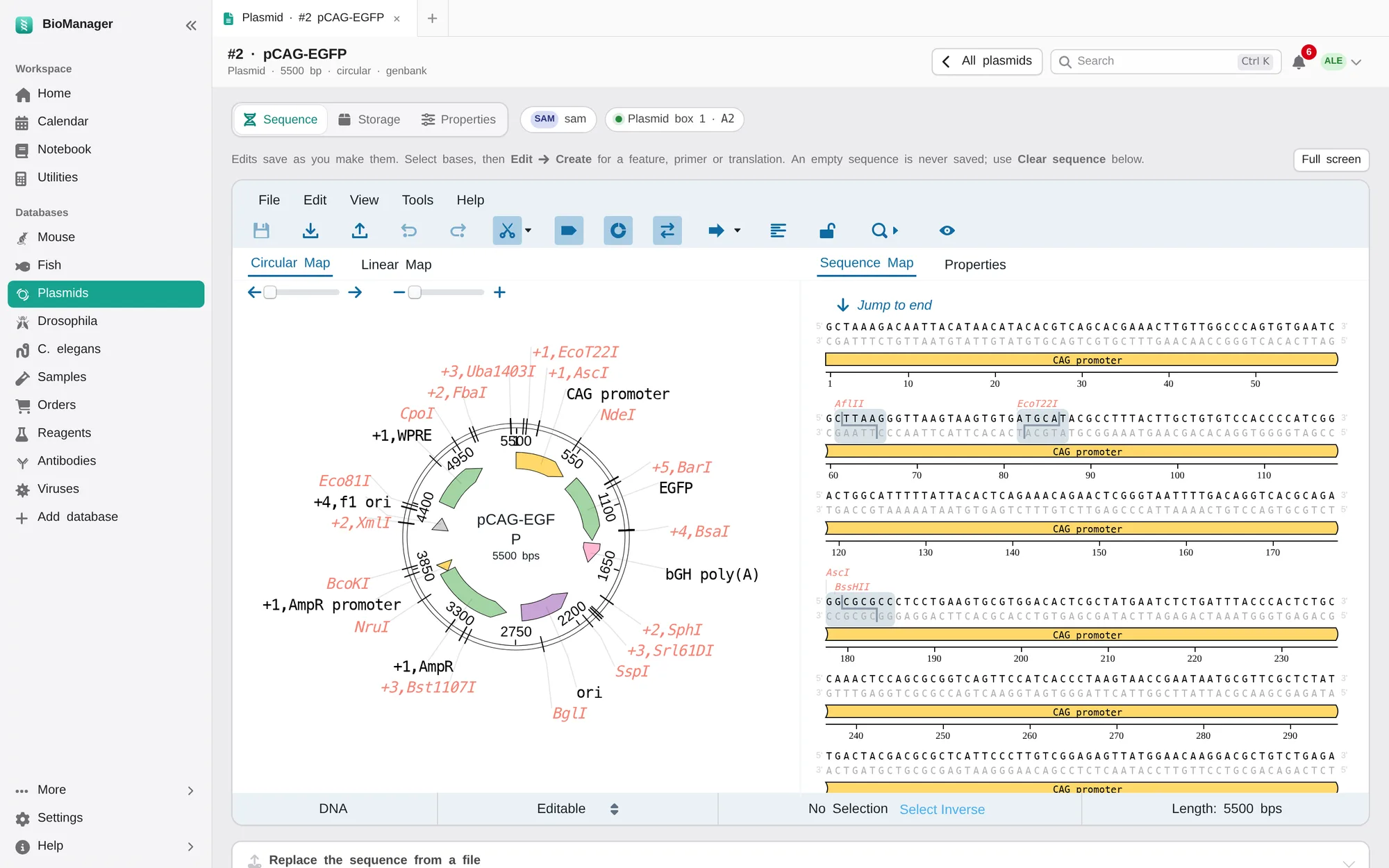
.dna, GenBank, FASTA or plain-text sequence. - Open a plasmid to see its sequence and features on an interactive map you can edit (edits save themselves), full screen if
you like; Storage and Properties are the other tabs. Storage also lists the viruses made from the plasmid
(Viruses). Its address carries its number: plasmid #12 is
…/plasmid/12. - Each tube keeps its miniprep's Concentration (ng/µL) and 260/280, in the sheet and on its Storage tab, which also lists the notebook pages that link it.
- Belongs to: Personal, or Lab common — anyone can edit it (a shared stock plasmid), while only its owner or an admin changes whose it is or deletes it. The Lab common chip lists them.
- Select plasmids to set owner, resistance or Belongs to, move them to a box, or delete. Moved into another box with no position, a plasmid takes its next free cell. Import from Excel brings in your old list.
Samples, orders, reagents, antibodies, viruses
One engine, eight starting points, each with its own columns and statuses:
| Samples | Tissue and material, linked to the animal it came from, stored at RT, 4 °C, −20 °C, −80 °C or LN₂ in a freezer box position, with what was measured as numbers: Conc. and its unit, 260/280, 260/230, Volume (µL). Available, in use, used up, discarded. |
|---|---|
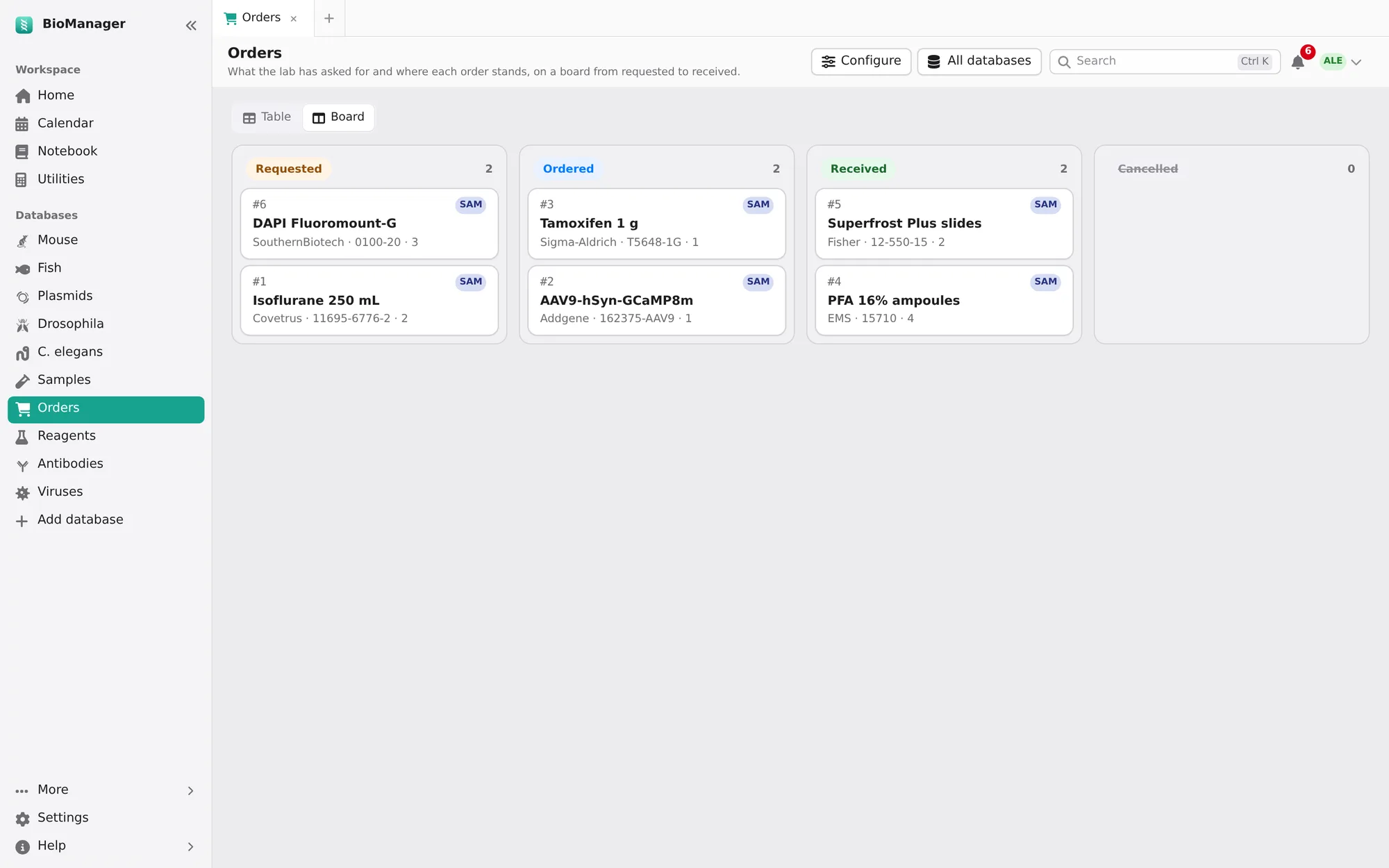
| Orders | What the lab has asked for: vendor, catalogue number, quantity, price, grant account. Requested, ordered, received, cancelled — on a table or a Board you drag cards across. |
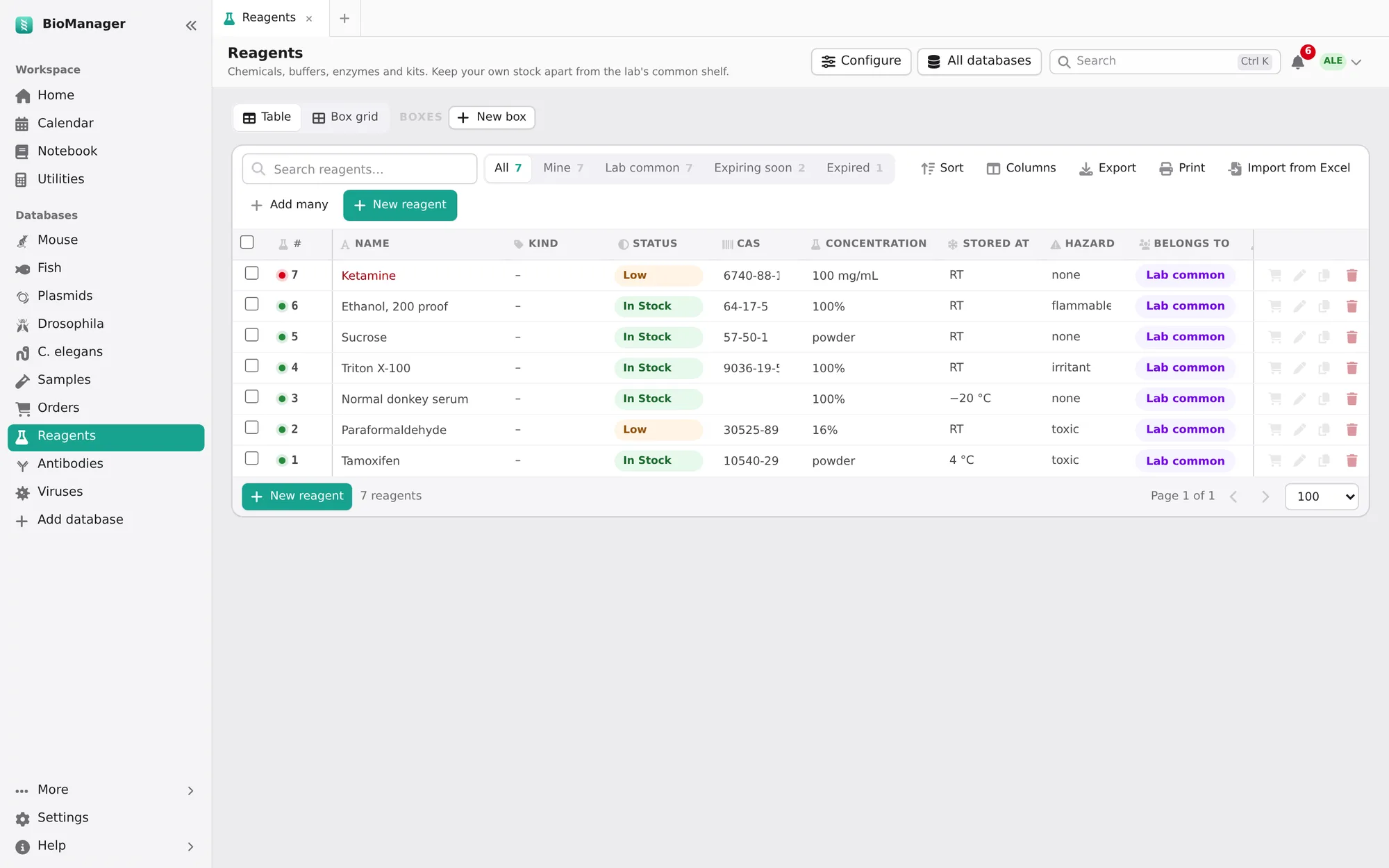
| Reagents | Quantity, concentration, CAS number, storage temperature, hazard, lot and expiry. In stock, low, empty, discarded. |
| Antibodies | Host, clonality, clone, conjugate, reactivity, applications, dilution, isotype, RRID, and where each vial is. |
| Viruses | AAV, lentivirus, rabies and other vectors: serotype, the plasmid it was made from (Made from), promoter, payload, titer, biosafety level, the date made, and each aliquot's place in a −80 °C box. In stock, low, used up, discarded. |
| Primers & oligos | Sequence (5′→3′), direction, target, its pair, stock µM and modification. Length, GC % and Tm are worked out from the sequence (nearest neighbour, 50 mM Na⁺, 250 nM). Add primer pair makes name-F and name-R at once, each naming the other, side by side in a box. Ordered, in stock, low, used up, discarded. |
| Cell lines | A frozen vial of each line or clone: species, parent, passage, freeze date, cells per vial, medium, selection, mycoplasma result and date, and its place in the LN₂ boxes. In stock, thawed, used up, discarded. |
| Custom list | Whatever you define. |
Ordering, start to shelf
- New order. Item, vendor, catalogue number and quantity are required (starred), so no order goes out half-filled. Type an item or catalogue number the lab has used before and pick it: the vendor, price and grant fill in from last time. The lab's admins are told of each new request.
- Follow it. The status chips — Requested, Ordered, Received, Cancelled — show each stage in one tap; the person who requested it is notified as it moves.
- It arrives. Mark it received and BioManager asks Add it to stock?: a new reagent, antibody or virus with its name, vendor, catalogue number, lot, quantity and expiry already filled in, opened for you to add where it's kept. (Later, the To stock button on the order does the same.) From then on the order shows Reagents #8 and the reagent shows the order it came from; each opens the other.
- Running low? On any reagent, antibody or virus, the cart button, Order again, opens a new order with its details and the quantity, price and grant of the last time it was ordered. While it is already on order the button says On order, and the new order opens with a note naming the open one and who asked for it.
Every inventory
- Mine and Lab common keep your own stock apart from the lab's shared shelf.
- Expiring soon (30 days) and Expired chips; expired and low stock also show on Home.
- Box grid places items in freezer boxes; the same boxes as everywhere else. A box's Stored at (−80 °C, LN₂…) goes to what is put in it, and moving the box moves theirs. In a box with no position given, an item takes the next free one. Marking a tube used up, empty or discarded frees its position; its location note keeps where it was. New box has How many, for a whole tower at once.
- Used in notebook pages, at the bottom of a record's dialog, lists the pages that link it
(
@antibodies 5; see Notebook). - Configure (its creator, or an admin): the name, what it tracks, the choices and statuses (renaming one relabels its items), your own columns, and which fields are needed for a new item.
- A plasmid column (the Viruses' Made from, or one you add in Configure as A plasmid): type the plasmid's number or name, or pick it from the list, and the cell opens that plasmid. The plasmid's Storage tab lists everything made from it, under Made from this plasmid.
Calendar
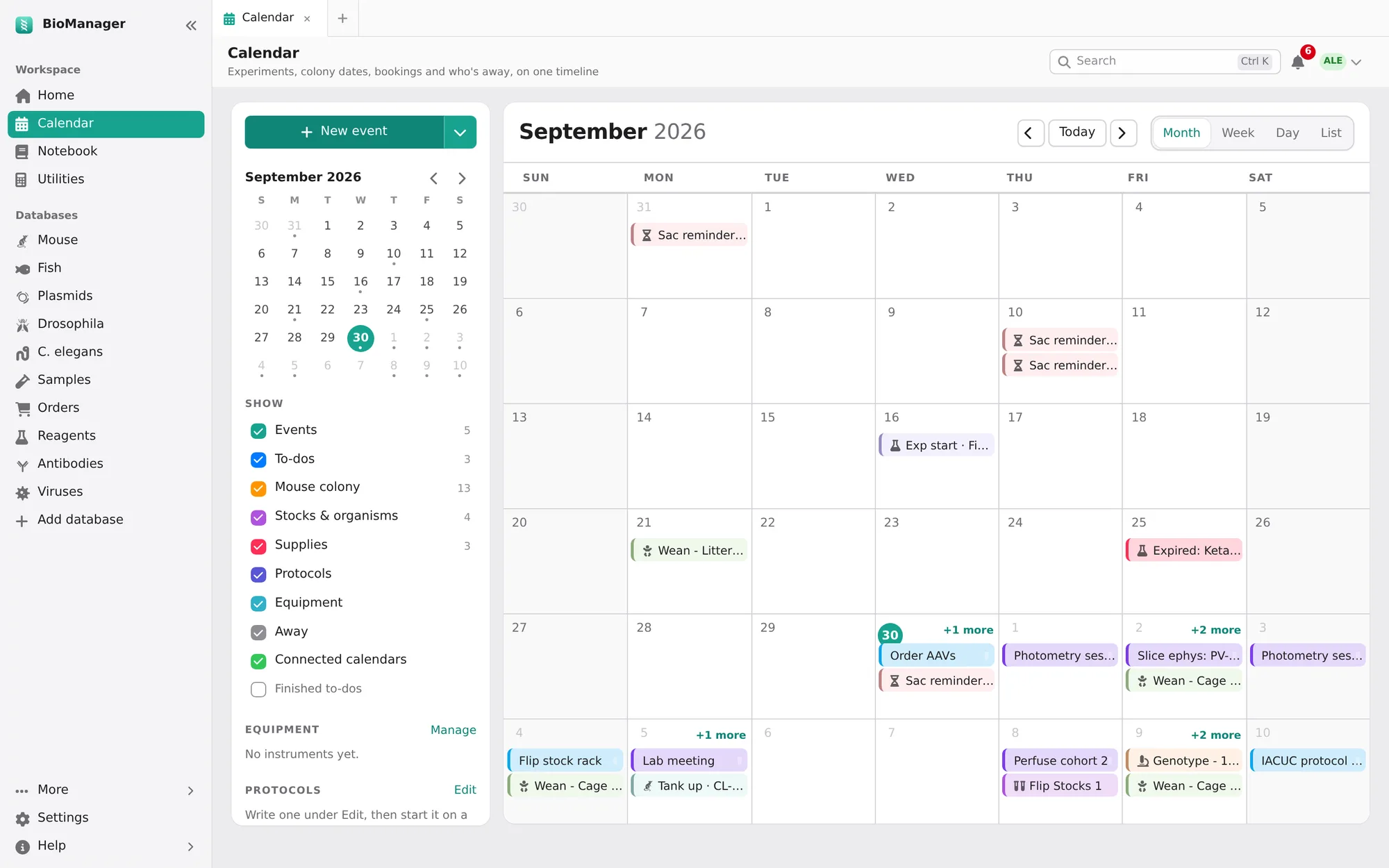
- Month, Week, Day and List views. Filled in for you: weanings, genotyping and sac reminders, fly and worm flips and
egg collections, organism schedules, zebrafish tanks and reagent expiry. Clicking one (once, in every view) opens the record it
came from. A link can open a given view and day:
/calendar?view=week&date=2026-10-05. - The sidebar has a small month to jump around, a Show list with a colour and a count for each kind (events, to-dos, the colony, stocks and organisms, supplies, protocols, equipment, time away, connected calendars), the instruments and the protocols under way.
- New event offers an event, a to-do (due today, tomorrow, next week, or a date), Book equipment, Time away and Start a protocol. Drag an event, to-do or booking to move it.
- Who sees it, for an event or a to-do: Only me, Everyone in the lab or one of your project groups. Your own is seen by nobody else, admins included. A shared event is changed only by whoever added it and admins; a shared to-do anyone it is for can tick off. A new event starts as the lab's, a new to-do as yours.
- Repeats: an event every N days, weeks or months, or every month on the same weekday (the first Monday), until a date. Delete this one takes out a single date and Change this one only moves or changes it alone; Save changes every repeat.
- Protocols: write the steps once in days from day 0 (tamoxifen days 0–4, implant day 14, perfuse day 42), then start it for an experiment or a cohort. Every step lands on its day; move day 0 and they all move. A run keeps the steps it started with if the protocol is edited later. (These put the days on the calendar; the notebook's protocols hold the bench steps.)
- Equipment: add the lab's instruments under Manage, and Edit one there to rename it, say where it is or change its colour; its bookings follow. A booking that overlaps another is refused, saying who has it and when. A new booking can repeat every day, weekday or week until a date — each repeat is a booking of its own, and if one clashes none is made. Duplicate, on an open booking, books the same instrument and times on another day.
- Time away: leave or a conference. Away soon lists what of theirs falls due meanwhile — animals, vials, to-dos, bookings, protocol steps — and asks who covers it; that person is told.
- Connected calendars shows Google Calendar and any iCal subscription alongside, read-only.
- On your phone: a private link (just your things, or the whole lab's) for Apple, Google or Outlook Calendar. It updates about every hour. Make a new link stops the old one working.
Notebook and utilities
Pages
- Pages in Topics, written like a document and kept as Markdown. A new page goes in the topic you have open, or in Inbox when none is (experiments and meetings go to their own topics). Type / at the start of a line for a menu of blocks: tables, plots, protocols, calculators and the rest below. Templates: ⋯ → Save as template, and start new pages from it (a name you already use asks before replacing that template). It keeps the page's type (an Experiment template makes Experiments); Structure only keeps the headings, steps and table headers and leaves out the results, ticks, readings, pictures and what was written under Results, Observations or Conclusion; Share it with the lab offers it to everyone.
- Type
@to link a mouse, plasmid, order or any inventory record — an antibody, a sample, a primer (@antibodies 5), found by its name, catalogue number or lot (a lot or catalogue number typed in full, like@0012, comes first; names such as anti-β-actin or Waf1/Cip1 are found as written), a database by its name (@antiboffers Antibodies, and picking it lists its records), or a colleague (@jordan, for action items); the page and the record then point at each other, and the record lists the page under Used in notebook pages. The chip shows the record's name after its number (@antibodies 5 · anti-p53). Hover over one for its details; clicking it opens the record, and ↗ (or ⌘/Ctrl-click) opens it in a new BioManager tab. - Daily log (Today) and Meetings: a presenter rotation, shared meeting notes, and action items
(
- [ ] @name …, due …) sent to that person's to-dos — from any page, with ⋯ → Send @name tasks as to-dos.
Experiments and protocols
- Experiments: aim, setup, samples and lot numbers, steps, results. Start and Finished stamp the times; planned, running, done or failed shows in the sidebar. (The colony's Experiments tab groups the animals.)
- Colony experiment (
/experiment) shows an experiment on any of your animals in the page: each day's manipulation, when it was done and by whom, the amount each mouse got, and the body weights as a table and a chart (grams or % of the first weight, with the manipulation days marked). It stays up to date; Freeze a copy keeps what it shows now in the page, so later changes to the experiment don't alter your record. On the experiment itself, Add to notebook makes your page for it with this block already in. - Protocols with numbered versions. Start an experiment from it copies the steps as a checklist and records the
version; Run mode takes you through it at the bench, one step at a time. Protocols in the sidebar (or
/protocol) opens the library: the lab's protocols and a dozen common ones built in, to insert or copy.
Data and calculators
- Data sheets: paste from Excel or a CSV, add formula columns, and get a plot (bar, dot, box, scatter, line) with error bars, a fitted line and a t-test, Mann–Whitney or ANOVA. Plate reader and qPCR blocks read concentrations off a standard curve and ΔΔCt fold changes.
- Buffer recipes scale with the volume; common buffers are built in and the lab's own are shared. Calculators for dilution, molarity, master mix, serial dilution, ligation, cells, gels, DNA/RNA and Protein (A₂₈₀): paste the sequence (or give ε and MW) and the reading, and it gives µM and mg/mL. Durations in a step get a ⏱ timer, named from the step's own words; time points (6, 24, 48 h, at 24 h, the 48 h samples) don't. Times on a page (started 16:00) are on the lab's clock, whatever your computer's time zone.
Signing a page
When a page should be the record of your work, Sign it — your choice, page by page; nothing asks you to. You confirm who you are (your password, or your user name if you sign in with Google or Microsoft) and what signing means. Its exact text is fingerprinted and kept as a version, any live experiment in it is frozen as it is then, and the page is locked: nobody can change or delete it. A lab mate can Witness it. To change it, its owner Amends it with a reason; the reason and every signature stay with the page, each showing whether the page still reads as it did when signed.
Working together
Share a page to read or edit, with people, everyone in the lab or a project group; editors type in it
at the same time. Comments on a passage, with @name telling that
person (switch these notices off under Settings → Notifications). Version history keeps every editing session to
compare or restore. Tags and search work across every page you can open.
Utilities
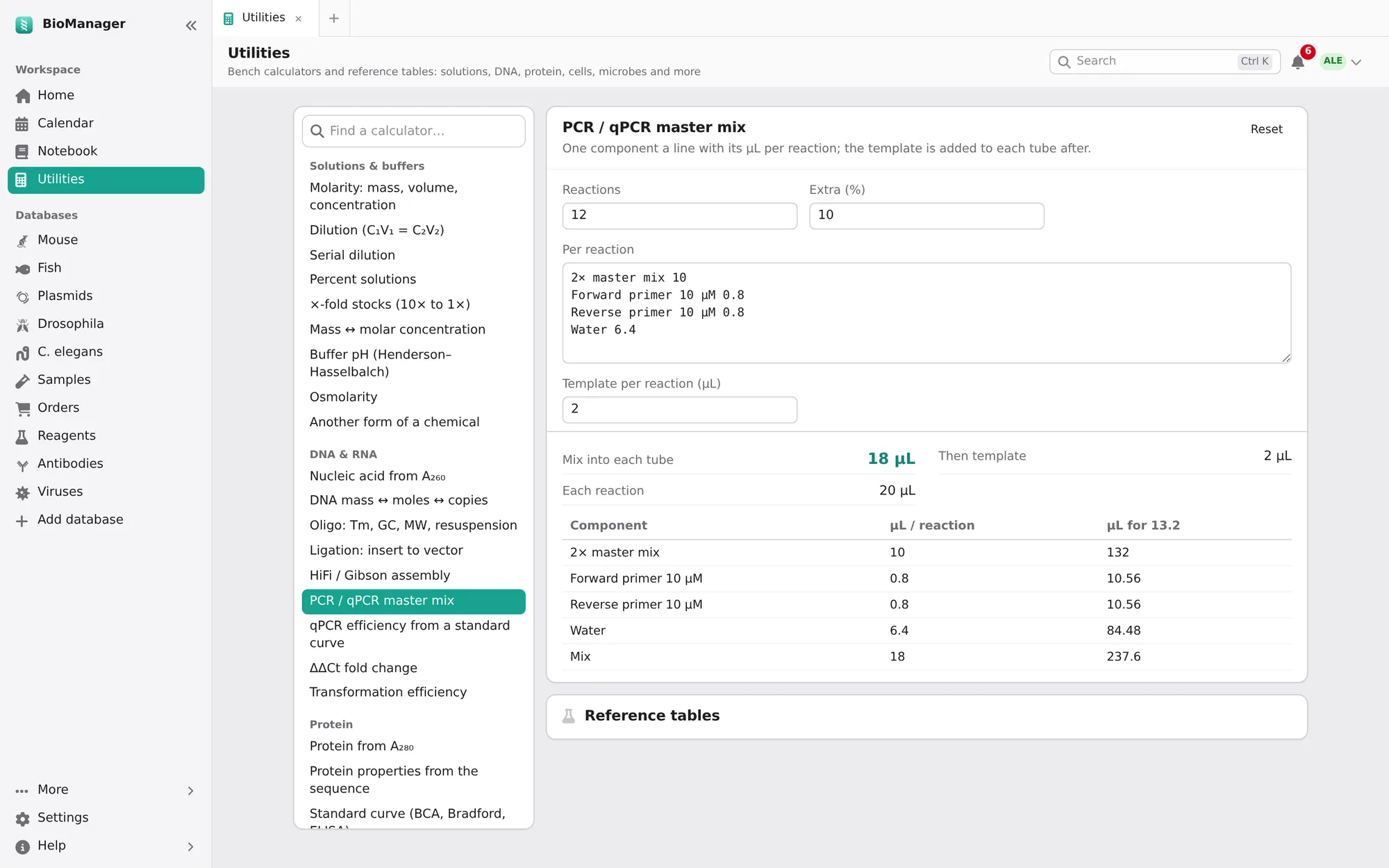
Utilities, under Notebook in the sidebar, holds 41 bench calculators. Find one in the list or type in Find a calculator (plain letters do: a260, ddct, or what you are doing, like nanodrop); the answer changes as you type, each remembers what you last typed in it on this computer, and Reset goes back to its example. Most solve for whichever field you leave empty (it is marked), and units are yours to choose.
- Solutions & buffers
- Molarity; dilution (C₁V₁ = C₂V₂); serial dilutions; percent solutions; ×-fold stocks; mass ↔ molar concentration; buffer pH (Henderson–Hasselbalch, with the temperature); osmolarity; another form of a chemical (a hydrate or salt for the one in the recipe). Type a chemical's name or formula to fill its molecular weight, from the lab's own list first (MgCl2·6H2O and magnesium chloride hexahydrate are the same one); one it doesn't know leaves the weight for you to type.
- DNA & RNA
- Concentration from A₂₆₀; mass ↔ moles ↔ copies; oligo Tm, GC, MW and resuspension volume; ligation insert:vector; HiFi/Gibson assembly; PCR and qPCR master mixes; qPCR efficiency from a standard curve; ΔΔCt fold change; transformation efficiency.
- Protein
- Concentration from A₂₈₀; MW, ε and pI from the sequence; a standard curve (BCA, Bradford, ELISA) read off for your samples; SDS-PAGE gel recipes; µg per lane.
- Cells
- Haemocytometer counts; seeding plates (by vessel); doubling time; scaling a transfection; virus for an MOI; lentivirus titer from % positive cells; freezing down; drug and vehicle for treatments.
- Bacteria & yeast
- OD₆₀₀ to cells and dilutions; time to reach an OD; antibiotic for plates and media.
- Centrifuge, animals & gels
- rpm ↔ × g; dose by body weight; agarose gels; radioactive decay.
- Numbers & units
- Mean, SD, SEM and CV; animals or samples per group; a unit converter.
Reference tables, below the calculator: culture vessels, buffers, antibiotics, agarose gels, isotopes and molecular
weights. A link to a calculator (…/utilities#dilution) opens it.
Part four
Working as a lab
On a lab server, everyone works in the same live database. The admin pages — Manage users, Guests and Racks & boxes — are under More at the foot of the sidebar, with Lab setup, the Colony overview and the Audit log, and in the account menu (click your name, top right).
Who can do what
- You edit what you own — your mice, cages, vials, plasmids and items.
- Shared cages and anything marked lab common belong to the whole lab. A cage whose purpose is Breeder starts out Shared; any other cage (an experiment cage, a Breeding one) starts Personal. Only its owner or an admin shares a cage, makes it personal or gives it to someone else; admins and animal care can still see and change every cage.
- Everyone sees the lab's databases, because a census with holes is not a census.
- Personal databases (Just you on their tile) are seen only by their owner and admins; a project group's by its members and admins.
- Admins can change anything, run Lab setup, approve people, and read the audit log.
- Animal care (technicians, vets; a role in Manage users) may change any lab's animals, cages, tanks and vials, but not other people's experiments, notebook pages or settings (their own they keep like a member). A Facility manager also runs the racks, rooms, incubators, water systems and each database's settings, but not accounts.
- Racks & boxes (admins, in the account menu) says who may resize, rename or delete each rack, box and incubator, in every database — fish racks and the racks of your own databases too. One with nobody is for admins only.
When a record isn't yours, BioManager says whose it is instead of just refusing.
Project groups
A group is some of the lab working on one project: a layer between you and the whole lab. More → Project groups lists them and who is in each. An admin makes a group, names it and picks its members; a group's leads may add and remove members too. Someone can be in several groups.
- Shared with a group. Wherever you choose Shared or Lab common, your groups are offered as well: a breeder cage, a plasmid or a reagent shared with a group is its members' to edit. For a breeding tank or a lab stock vial, pick the group under Shared with in its dialog. Everyone in the lab still sees them.
- A group's database. When you make a database, Who is it for? offers your groups: only their members (and admins) see it, and they are told it was added. Share with the group on the Databases page gives one of your own to a group.
- A group's events and to-dos. On the calendar, Who sees it offers your groups: the group's members see it on their calendar (and a to-do on Home), and any of them can tick a to-do off; only its maker or an admin changes an event or deletes a to-do.
- Notebook. Share on a page offers your groups as well as people, to view or to edit; a template can be for a group (Who can use it).
- The colony. My groups, beside My colony, shows the mice and cages of everyone in your groups.
Deleting a group (admins) makes what was shared with it its owner's own again (a breeding tank or a stock vial the lab's, as its purpose says), and a group's databases their maker's.
People and guests
- Joining
- New sign-ups wait for an admin's approval in Manage users. Members can also sign in with Google or Microsoft, or with the institution's own account, if the server offers it, and connect it under Settings → Sign-in methods (setting it up).
- Admins
- Manage users promotes and demotes admins, disables accounts and resets passwords; Lab setup can also make someone admin. Keep at least two.
- Leaving
- More → Colony overview in the sidebar (admins) lists every cage by who manages it, idle cages and living mice without a cage; hand racks over in Racks & boxes, then disable the account. Their records and history stay.
- Guests
- For someone outside the lab — a collaborator, a visitor — for a day to a month: Guests in the account menu (admins), who it's for and how long, Make a code. They open the link, enter the code, and work as a member with their own account until the pass ends or you press End now. On a Tailscale server, the admin can let guests in from the internet without Tailscale (how).
Lab setup
More → Lab setup in the sidebar (admins) reopens the survey at any time: switch databases on or off, rename the lab, choose the calendar and notebook, and set what members may do — create their own databases, or add ones for the whole lab. Under Who looks after the lab, make someone admin.
Switching a database off hides it and closes it to members, even by a saved link; its data is kept, and admins can still open it (a note says it is off).
Under Your lab, besides its name:
- Time zone — what "today" and "overdue" mean, and the times shown. Blank uses the server's (or the computer's).
- Dates — how dates are written in lists and messages: Sep 26, 2026, 26 Sep 2026 or 2026-09-26. Date fields you type into follow your computer's language.
- Genotyping day — the day after birth the genotyping reminder falls on (P28 unless you change it).
Phones and cage cards
- Android
- Install
BioManager-Android.apkfrom the download page (allow your browser to install apps when asked), type your lab server's address once, and you're in. The Scan button reads cage cards. - iPhone and iPad
- Open the server in Safari and tap Share → Add to Home Screen. BioManager gets its own icon and opens full screen like an app; your camera scans cage cards. (Android without the app: Chrome → ⋮ → Install app.)
- Cage cards
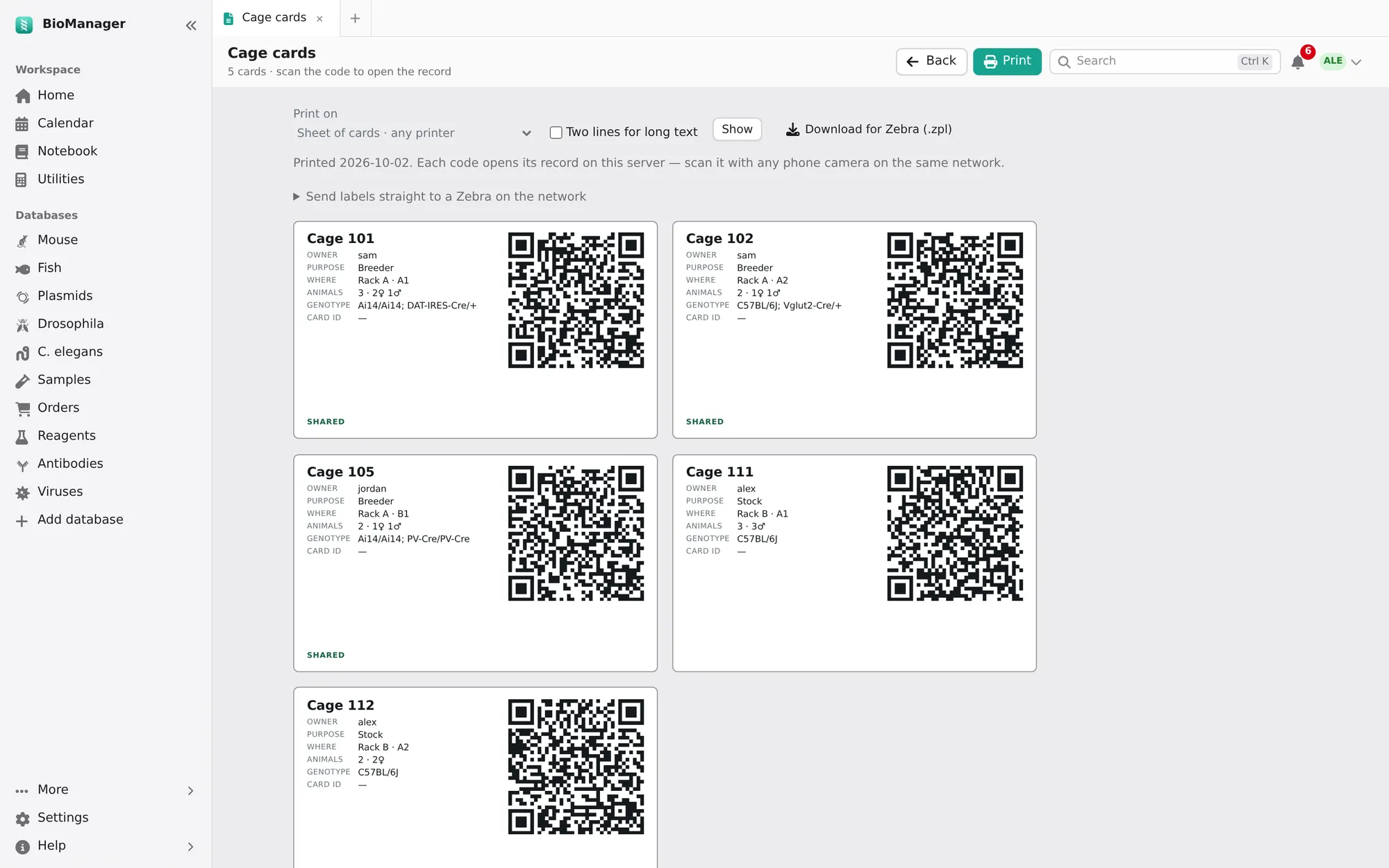
- Cages → Cage cards prints cards sized for standard card stock — owner, purpose, where it goes (rack and position), animals with how many of each sex, genotype and a QR code. Scanning it opens that cage, ready to edit, at the rack. Tank labels (Zebrafish), Labels on a fly or worm database, and Labels on ticked samples, reagents or any inventory's rows do the same for tanks, vials and tubes.
- Label printers
- Print on chooses a sheet of cards for any printer, or a label printer's roll: Brother QL (62 × 29, 90 × 29, 100 × 62 mm), Zebra (2 × 1, 3 × 1, 4 × 2, 4 × 2.5 in) or cryo-tube labels. It then prints one label a page, typed to fit; in the print dialog pick the label printer and that label size, margins None. Your choice is remembered. For tubes, On each label chooses what a label says (box, position, lot, owner, a column such as concentration, the day printed), remembered for each database, and Two lines for long text wraps a long name or place instead of cutting it. For a Zebra, Download for Zebra (.zpl) gives the labels in its own language; or an admin adds the Zebra's address on the lab's network once (under Send labels straight to a Zebra), and Send to Zebra prints them at once.
Part five
Data and help
Your data and backups
The desktop app
| macOS | ~/Library/Application Support/Biomanager/ |
|---|---|
| Windows | %APPDATA%\Biomanager\ |
| Linux | ~/.local/share/Biomanager/ |
- Your data lives outside the app, so updating or reinstalling never touches it.
- Before a new version changes the database an older one made, it copies it to
backups/before-upgrade-….dbin that folder (the last ten are kept). Every release is tested opening a lab made by each earlier release, with nothing lost. - Back that folder up with Time Machine or File History, copying it while BioManager is closed.
A lab server
A server backs up every night, restores the newest backup every week to prove it works, and can keep encrypted copies off-site — see Keeping the data safe.
A copy of the lab on your computer
The desktop app can keep a copy of your lab server's whole database, so the lab's records live on more than one machine:
- On the server: Settings → Copies of the lab on your computers, name the computer and Make a key. Copy the key; it's shown once. (Admins always may; members when Lab setup allows it.)
- On that computer, in the desktop app: Settings → Keep a copy of your lab server. Enter the server's address and the key, and Save and copy now.
- From then on, while the app is open, it takes a fresh copy every day, checks it, keeps the last 14 and mirrors uploaded files. The card shows when the last copy was made; on the server, the list shows every computer and how fresh its copy is. Revoke stops a computer (a lost laptop, say) from taking more.
The copies sit beside the app's own data, which they never touch. An admin's copy is the whole lab, and can rebuild the server if it's ever lost (how): treat a computer holding one like the server itself. A member's copy holds what they can see in the app: no one's password, not other people's private notebook pages or personal databases, not the Audit log. Guests can't keep a copy.
One lab on many devices
One device holds the lab's master copy; every other one works on it through its address, so nothing is ever merged and nothing written in two places is lost. Settings → Devices shows which device it is, and every computer linked to the lab (by a key from Copies of the lab): how it uses the lab, its version, when it was last heard from.
- A lab server is the master copy unless an admin hands it on.
- Open the lab in this window (a linked desktop): the app's window opens the lab itself, as a browser would, and the computer keeps its daily copy. Go → This Computer's BioManager comes back to its own.
- Share this lab on the network (a desktop, admins): the computer becomes the master for every device on the same network, which opens the address it shows and signs in with an account there. It must stay on and awake. The connection isn't encrypted, so share only on a network you trust; for anywhere else, a lab server. Its own pages (setting up a server, its copies, its devices) are never offered to another device.
- Make it the master (on the master, admins): for a linked desktop with an admin's key, open now, on the same
version. Within a minute it freezes the master (read only, so no change is lost), takes a last copy, keeps its own
data in
backups/before-taking-over-….db, and shares the lab on its network. The old master stays read only, with a banner pointing everyone there. Everyone signs in again with their lab account. Sign-ins to other services (Google Calendar) are not carried and are connected again. - Give the master copy back (on the desktop holding it): its database and new files go back; the other device
keeps what it had in
backups/before-taking-back-….dband is the master again. The desktop turns read only and opens the lab there; Go back to this computer's own lab restores what it had before it took over. - If the computer holding the master copy is lost, an admin on the old master chooses Make this the master again: what was changed on the lost computer since is not there.
Everyone
Export on any sheet downloads what it shows as CSV, which opens in Excel. On the Mice sheet, Export → Excel
is a workbook that Import from Excel reads back. A note that starts with = stays text in every export,
never a formula. Export my data (in the account menu, and in Settings) downloads your own mice, cages, weights,
experiments and plasmids as CSV, your notebook pages and your profile, in one zip.
What BioManager sends its makers
Your records never leave your computer or your lab's server. So that BioManager's makers know how many labs use it, each installation sends one short message a day, with counts only:
- the version, whether it is the desktop app or a server, the operating system and the kind of database;
- how many members, and how many changed something this week, as ranges (1, 2–5, 6–15, 16–50, 51+);
- which built-in functions are on, and how many databases of each kind;
- a random id for the installation, so a lab counts once.
Never names, email addresses, anything anyone wrote, what your databases are called, or the computer's name or address.
It goes to PostHog, which is asked not to work out where it came from. Admins see exactly what is sent on the
Usage report (Feedback → Usage report) and can Switch off there; the setup survey asks first. On a
server, BIOMANAGER_TELEMETRY=0 (or DO_NOT_TRACK=1) in .env turns it off for good.
Scripts, instruments and other tools
BioManager has an API: other programs can read the lab's records, and change them, as you. Pull an experiment's body weights straight into R or Python, have a balance post each weight as it weighs, let a core's system mark samples as done, or count cages for the facility — without anyone exporting a sheet.
- Settings → API tokens: say what will use it (Balance in B12, My R scripts), whether it may Read or Read and change, and when it ends. Make a token.
- Copy the token: it is shown once. Treat it like your password, and keep it out of scripts you share (an environment variable is the usual place).
- Send it with each request, as
Authorization: Bearer bmt_…. The API reference (the link on the same card, or/apion your BioManager) lists everything it can read and change, with examples in curl, Python and R.
- A token is you. It can do what you can on the pages, no more; a change made with it is in the change history under your name, marked with the token's name.
- It can read mice, cages, litters, strains, tanks and fish, plasmids, fly and worm vials, every inventory and every experiment; and change a mouse (its cage, genotype, note, status…), record a weight, change a vial, add or change an inventory item, and record an experiment's readout.
- Make one token for each thing that uses it, so you can Revoke one without the others. The card shows when each was last used. Admins see everyone's tokens and can revoke any; Setup can keep tokens to admins.
- With the desktop app, only programs on that computer can reach it; on a lab server, anything that can reach the server.
Keyboard shortcuts
| ⌘/Ctrl K | Search everything |
|---|---|
| Alt 1…9 | Go to tab 1–9. On a Mac, Alt is ⌥ Option, here and below. |
| Alt ← → | Previous / next tab (also Alt [ ]) |
| Alt W | Close this tab |
| ⌘/Ctrl B | Hide or show the sidebar |
| Esc | Close a menu or dialog |
| Shift-click | Select a range of rows |
| ⌘/Ctrl D | Fill down, in the mice's Add many preview |
In the desktop app on a Mac, the menu bar has the usual ones as well:
| ⌘ T · ⌘ W | New tab · close this tab |
|---|---|
| ⇧ ⌘ ] [ | Next / previous tab |
| ⌘ 1…9 | Your databases, in the sidebar's order (all of the sidebar is in Go) |
| ⌘ [ ] · ⇧ ⌘ H | Back / forward · Home |
| ⌘ , | Settings |
| ⇧ ⌘ E · ⌘ P | Export this sheet · print |
| ⌘ R · ⌘ = - 0 | Reload · zoom in, out, actual size. View → Appearance sets light or dark whatever the system uses. |
Troubleshooting
- The app won't open on my Mac
- Right-click it and choose Open. If macOS says it's damaged, move it to Applications first, then try again.
- Linux: the AppImage does nothing
- Mark it executable. If it still won't start, install
libfuse2, or use the.tar.gzand runBioManager/BioManager. - My phone can't reach the server
- Check the address with your admin; that you're on the lab's network, VPN or Tailscale; and, if your lab uses its own certificate, that it's installed on the phone.
- I can't edit a record
- It belongs to someone else and isn't shared: BioManager says whose it is. Ask them, or an admin.
- A cell turned red
- That change wasn't saved; the message at the bottom says why (a required field, a date that isn't one).
- I made a mistake with a bulk change
- More → Batch history in the sidebar → Undo.
- I forgot my password
- Ask an admin: Manage users resets it.
- Rows were skipped on import
- The preview lists each one by its row number in Excel and says why. Fix those rows and import just them: importing the whole sheet again would add the other rows a second time.
- A colleague's database isn't in my sidebar
- It may be their personal one (Just you on its tile), which only they and admins see, or an admin may have switched it off.
- A database disappeared from the sidebar
- An admin may have switched it off in Lab setup; its data is kept, and it comes back when it is switched on.
- Something else
- Help → Send feedback in the sidebar (see below), or open an issue — say which system you use and what you expected to happen.
Feedback
Send feedback, under Help in the sidebar, is for something that went wrong, an idea or a question, from the page you're on. It is kept in your lab: its admins are told, read it on the same page and mark it Done. To tell BioManager's makers too, Open as a GitHub issue: a new issue opens with your text, the page, the version and the browser filled in (not your server's address, nor your name), for you to check and submit. You need a GitHub account.
Admins also find a Usage report there: for each of the last eight weeks, how many people changed something and how many changes in each area, and what the lab holds now. Counts only — no names, nothing anyone wrote — and the report is not sent anywhere: copy the text at the bottom into an email, for instance to whoever runs a pilot with your lab. Below it, Anonymous counts for BioManager's makers shows the daily message word for word, with Switch off (more).