 BioManager
Your databases
Calendar
Experiments, to-dos and bookings, with the colony's dates filled in for you.
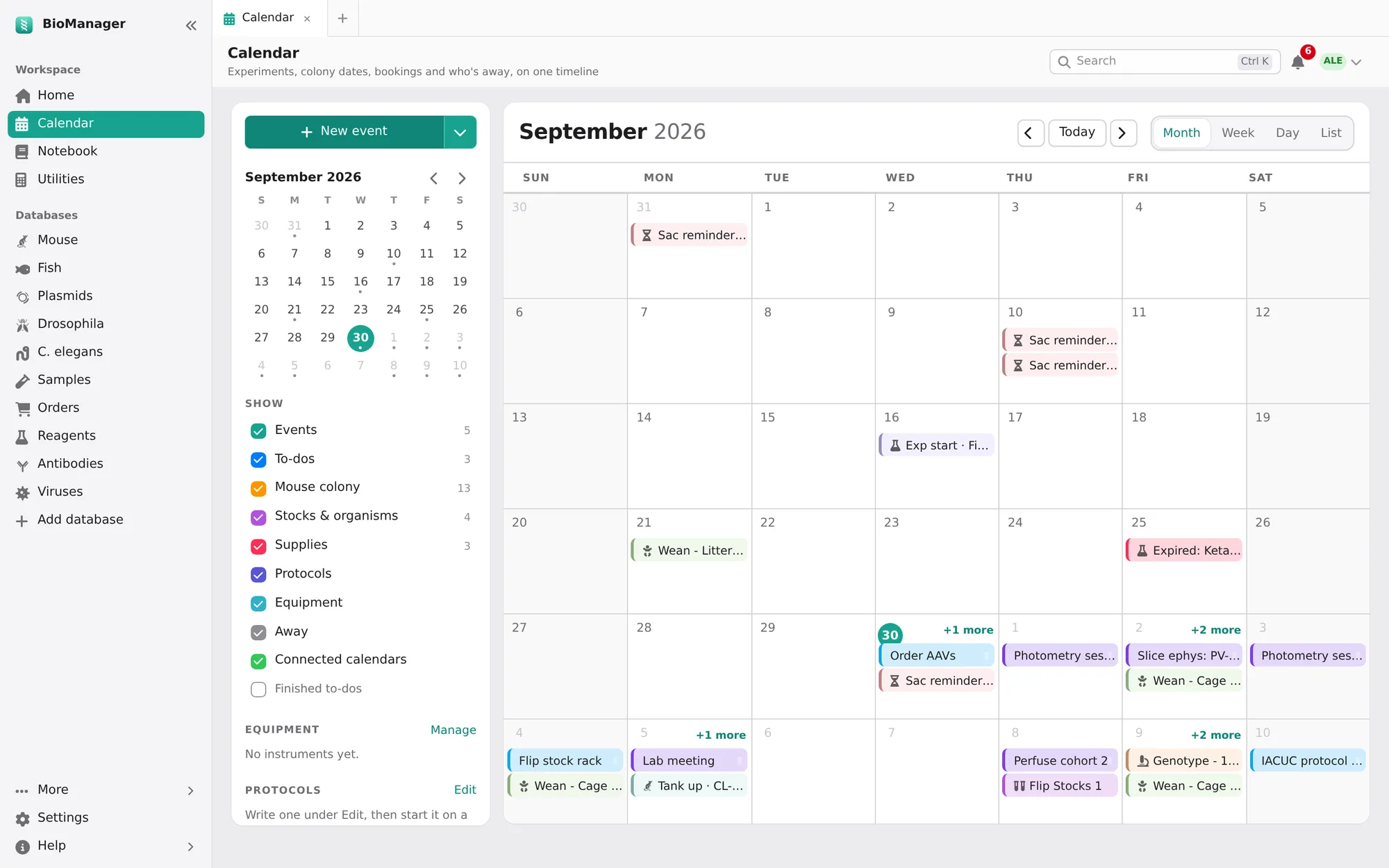
- Month, Week, Day and List views. Filled in for you: weanings, genotyping and sac reminders, fly and worm flips and
egg collections, organism schedules, zebrafish tanks and reagent expiry. Clicking one (once, in every view) shows it in a small
pane beside it: its day and hours, what kind it is and whose, the mice it names (each a link), its note, and Mark done
for a to-do and Open for the event, or the record it came from. A link can open a given view and day:
/calendar?view=week&date=2026-10-05. - In Month, the kinds of things shown are a row of chips above the grid, each with its colour and how many there are this month; click one to hide or show that kind. Beside the grid is the day you picked (today at first; click any day to pick it) with what is on it, a ring to tick off a to-do, then Meetings, Equipment and Protocols.
- In Week, each day is its weekday and its date, today's in a filled circle and its column tinted from its name down; under the days the Due row holds what falls on a day without a time, each a pill; the hours run in 24-hour time from 08:00 (scroll for earlier or later), and a red line with a dot marks now.
- The month (or week, or day) is the page's title, a week's with its days beside it (October 2026 · Oct 25 – 31). Back, Today and Forward, the Month / Week / Day / List / Board switch and New event are in the row at the top.
- Board shows your to-dos as cards in lists, as on a kanban board: Inbox (every open to-do not in a list), the lists you make with Add a list (This week, Waiting on…), and Done, what was ticked off in the last two weeks. Drag a card to another list or up and down one; into Done ticks it off. Add a card makes one in that list; write its day in it as you would say it (Order primers Fri, Call the vendor tomorrow, Book the scope by Nov 8, 明天订抗体) and the day shows under the box: the card is on the calendar that day (× keeps the words as written). A card with no day stays on the Board rather than on the calendar's today. Under Inbox's cards, From the calendar lists the week's weanings, genotyping, flips and supplies running low, and anything overdue; each opens where it is done. Click a card to change its title, day, list or notes, or to delete it; with a day it is on the calendar that day too. A list's ••• renames it, moves it left or right, or deletes it (its cards go back to Inbox). The lists are yours; a lab to-do is in the same list for everyone.
- In Week, Day and List, beside the grid are a small month to jump around, a Show list with a colour and a count for each kind (events, to-dos, the colony, stocks and organisms, supplies, protocols, equipment, time away, connected calendars), the instruments and the protocols under way.
- New event offers an event, a to-do (due today, tomorrow, next week, or a date), a Meeting, Book equipment, Time away and Start a protocol. Drag an event, to-do or booking to move it.
- Meetings: a lab meeting or journal club that comes round every week. Give it its day, time and place, and the people who present in turn. Meetings in the side panel lists each with who presents next; open one to move the rotation on (Skip ›) or back (‹), make the Notes for the next meeting (a notebook page shared with everyone in it), Put the next meetings on the calendar, each naming its presenter, or read the notes of past ones. A meeting's event links to its notes.
- Who sees it, for an event or a to-do: Only me, Everyone in the lab or one of your project groups. Your own is seen by nobody else, admins included. A shared event is changed only by whoever added it and admins; a shared to-do anyone it is for can tick off. A new event starts as the lab's, a new to-do as yours.
- Repeats: an event every N days, weeks or months, or every month on the same weekday (the first Monday), until a date. Delete this one takes out a single date and Change this one only moves or changes it alone; Save changes every repeat.
- Protocols: write the steps once in days from day 0 (tamoxifen days 0–4, implant day 14, perfuse day 42), then start it for an experiment or a cohort. Every step lands on its day; move day 0 and they all move. A run keeps the steps it started with if the protocol is edited later. (These put the days on the calendar; the notebook's protocols hold the bench steps.)
- Equipment: add the lab's instruments under Manage, and Edit one there to rename it, say where it is or change its colour; its bookings follow. A booking that overlaps another is refused, saying who has it and when. A new booking can repeat every day, weekday or week until a date — each repeat is a booking of its own, and if one clashes none is made. Duplicate, on an open booking, books the same instrument and times on another day.
- Time away: leave or a conference. Away soon lists what of theirs falls due meanwhile — animals, vials, to-dos, bookings, protocol steps — and asks who covers it; that person is told.
- Connected calendars shows Google Calendar and any iCal subscription alongside, read-only.
- On your phone: a private link (just your things, or the whole lab's) for Apple, Google or Outlook Calendar. It updates about every hour. Make a new link stops the old one working. Google fetches the link from the internet, so it works only when the server is open to the internet; with no server, use Mac Calendar.
- Mac Calendar, in the desktop app on a Mac, needs no server. BioManager keeps a calendar called
BioManager up to date in the Mac's own Calendar app, and the Mac takes it on to the account it is in, so it shows in Google
Calendar or on your iPhone. Click Allow access once, choose Just mine or The whole lab calendar and where
it goes, then Start.
- iPhone: choose iCloud.
- Google Calendar: add your Google account in System Settings → Internet Accounts, with Calendars on. A Mac can't add a calendar to a Google account, so first make one called BioManager in Google Calendar on the web (Settings → Add calendar → Create new calendar), then choose it once it shows in the list.
- It updates while BioManager is open: every 15 minutes, and soon after a change. Update now does it straight away.
- The calendar is BioManager's alone: anything else put in it is taken out at the next update, and changes made there don't come back to BioManager.
- Stop removes the calendar BioManager made, or empties the one you made.
Was this page helpful?
No